1. All builds at a glance
Pick one big centerpiece and a few small decorations. These are the sizes used in this guide:
| Build | Tool and settings | Size | Blocks |
|---|---|---|---|
| Christmas tree | Cone, hollow | 15 × 21 × 15 | 445 |
| Small tree | Cone, hollow | 9 × 9 × 9 | 109 |
| Snowman | Three hollow spheres: 9, 7, 5 | 9 wide, 21 tall | 338 |
| Snow globe | Round dome 21 + cornice ring | 23 × 12 × 23 | 697 |
| Wreath | Torus 15, tube 3 | 15 × 3 × 15 | 252 |
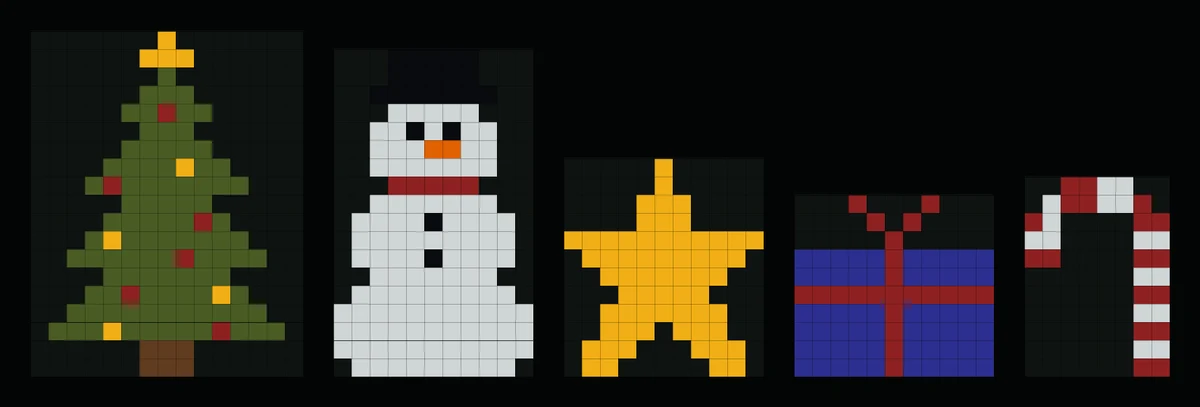
| Pixel art tree | Pixel art generator | 15 × 19 | 115 |
To turn any total into stacks and shulker boxes, use the stack calculator.
2. Cone Christmas tree
A tree is a cone: wide at the bottom, one block at the top. Open the sphere generator, choose Cone and set width 15, height 21 and depth 15.
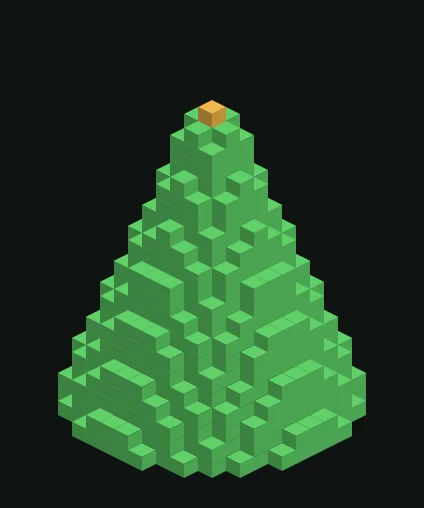
- Build the trunk first. Place a column of spruce logs where the center of the cone will be. It gives you something to count from on every layer.
- Build layer by layer. Use the layer slider in the generator and copy each layer around the trunk. The layers shrink toward a single top block; often two layers in a row are the same size.
- Add the ornaments. Swap a few blocks of the shell for sea lanterns, glowstone, shroomlight, red wool or gold blocks. Spread them out so no two sit next to each other.
- Top it off. Put a gold block, an end rod or a lightning rod on the single top block.
| Cone (width × height) | Hollow | Solid |
|---|---|---|
| 9 × 9 | 109 | – |
| 9 × 13 | 161 | – |
| 11 × 15 | 229 | – |
| 15 × 21 | 445 | 1,405 |
| 21 × 31 | 913 | – |
Hollow is the better choice for a tree: it looks the same from outside and uses less than a third of the blocks of the solid 15 × 21 cone.
3. Snowman from three spheres
Stack three spheres that get smaller toward the top. With widths of 9, 7 and 5 the snowman is 9 blocks wide and 9 + 7 + 5 = 21 blocks tall. Plan each sphere in the sphere generator:
Use snow blocks or white concrete for the body. Mark the eyes and buttons with coal blocks or black concrete, use an orange block for the nose, and swap a row of blocks at the bottom of the head for red wool as a scarf. Build the base sphere first, then start the next sphere directly on its top layer.
4. Glass snow globe
A snow globe is a glass dome on a ring. In the dome generator, choose Round, set the diameter to 21 and set Base ring to Cornice, which makes the ring stick out 1 block. The dome itself takes 569 blocks and the ring 128, for 697 in total. Pick glass as the dome block and stone bricks, polished deepslate or dark oak planks as the ring block, and the schematic and commands use both.
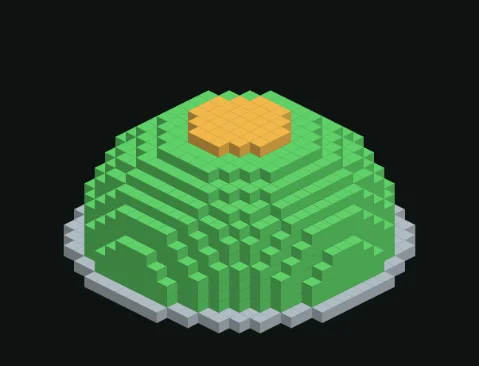
A round 21-block dome is 11 layers tall, so a 9 × 9 cone tree (109 blocks, 9 tall) fits under it. Cover the floor with snow blocks or snow layers around the tree. For a bigger globe, a 31-block dome is 16 layers tall and takes 1,233 blocks, or 1,429 with the cornice ring. The dome building guide explains how to build one layer by layer.
5. Wreath
A wreath is a ring, which the sphere generator calls a Torus. The 15-block torus with a 3-block tube is 3 blocks tall, has a 9-block hole and needs 252 blocks. A 21-block torus with the same tube needs 364.
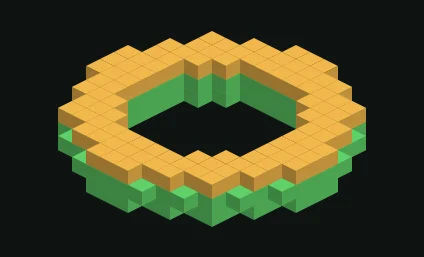
Build it from spruce leaves and add a few red wool blocks or light blocks around the ring. The torus lies flat, so it works on the ground around a tree, on a roof or as a centerpiece on a plaza. For a flat wreath on a wall, a thick circle from the circle generator is simpler.
6. Christmas pixel art
Here are five small designs run through the pixel art generator with the default concrete palette and dithering set to None, which is the setting for sprites and logos.
| Design | Size (w × h) | Blocks | Block list |
|---|---|---|---|
| Christmas tree | 15 × 19 | 115 | 95 green, 8 yellow, 6 brown, 6 red concrete |
| Snowman | 11 × 18 | 140 | 112 white, 21 black, 5 red, 2 orange concrete |
| Star | 11 × 12 | 63 | 63 yellow concrete |
| Gift box | 11 × 10 | 82 | 60 blue, 22 red concrete |
| Candy cane | 8 × 11 | 34 | 18 red, 16 white concrete |
To make your own:
- Draw the design in any paint program at the exact size you want in blocks, one pixel per block, on a transparent background.
- Upload it to the pixel art generator and set Width in blocks to the picture's width in pixels. Transparent pixels stay empty.
- Set dithering to None so flat colors stay flat. Use Edit blocks to fix single blocks.
- Press Print build plan for a numbered grid with a block legend, or download a .litematic, .schem, .mcfunction or .mcstructure file. Choose upright (a wall) or flat (on the ground) before you download.
For larger pieces, 32 to 64 blocks wide is a good size for detail you can still finish in one session. Tick Survival-friendly only to leave out blocks that are hard to collect in large amounts.
7. Blocks and finishing tips
- Snow: snow blocks for solid parts, snow layers to dust roofs, paths and the floor of a snow globe.
- Greenery: spruce leaves and spruce logs for trees and wreaths; green concrete or green wool for pixel art.
- Ornaments: lanterns, sea lanterns, glowstone and shroomlight, plus red wool, gold blocks and redstone blocks for color.
- Ice and glass: packed ice and blue ice for frozen ponds, glass or light blue stained glass for domes and windows.
- Detailing: spruce stairs, slabs, trapdoors and fences around the base of a tree or along a roof, red and white carpet for a festive floor.
For a Christmas flag over a door or a shop, design one in the banner maker.