How to use the circle generator
- Pick a diameter. Type the width of the circle in blocks, or tap one of the quick sizes. For an oval, untick "Same width and height" and set both values.
- Choose a style. Thick is best for walls, Thin uses fewer blocks, and Filled gives you a solid disc for floors and roofs. Raise Ring thickness for wide walls, moats, roads around a base or a two-layer wall.
- Mark the center in your world. Place a block where you want the middle of the circle. The yellow lines in the chart show where the center is.
- Build one quarter, then mirror it. Circles are symmetric, so count the blocks in one quarter from the center outward and repeat the same steps in the other three directions. The segment list under the chart, like 4-2-2-1-1-2-2-4, gives you those counts directly.
- Zoom in on big circles. For circles over about 60 blocks, switch the zoom to 100% or 200% and scroll around the chart, or press Full screen to use the whole display.
- Track your progress. Turn on Builder mode and tap each block as you place it. Your progress is saved in your browser, so you can close the page and continue later.
Minecraft circle chart by size
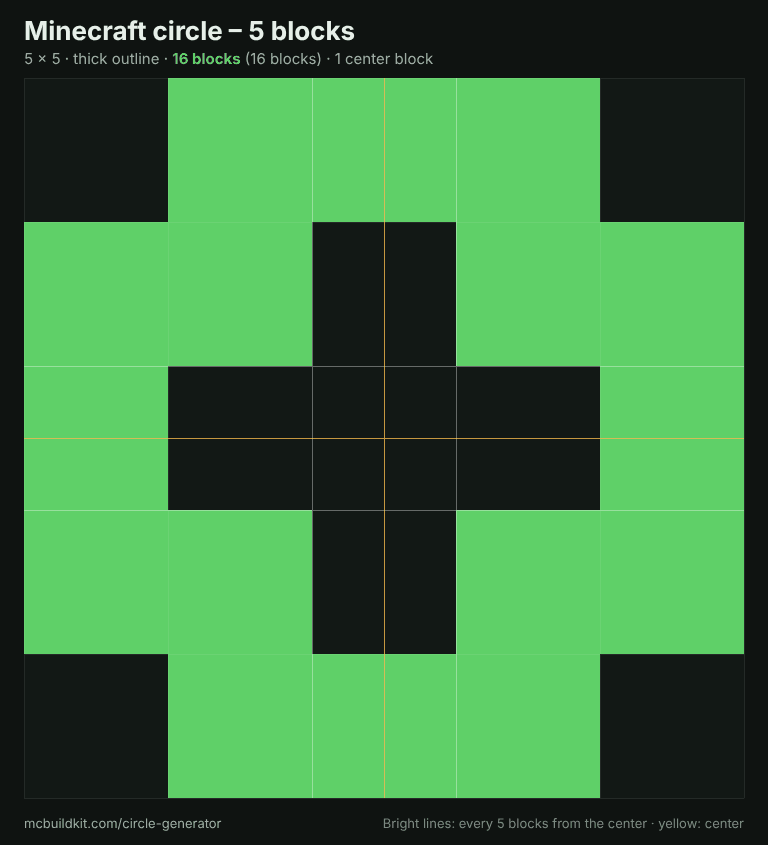
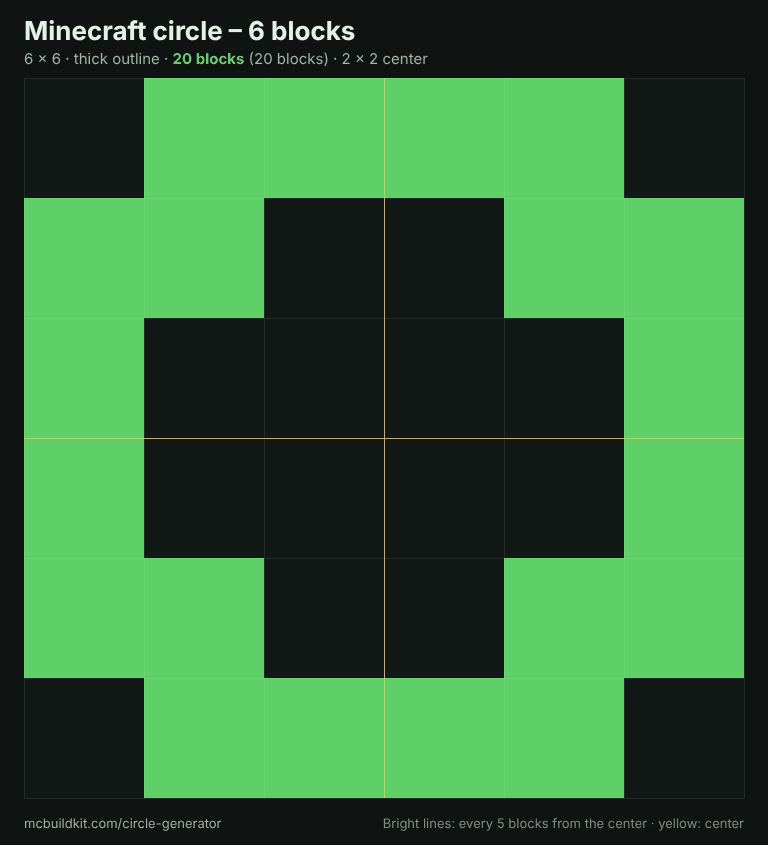
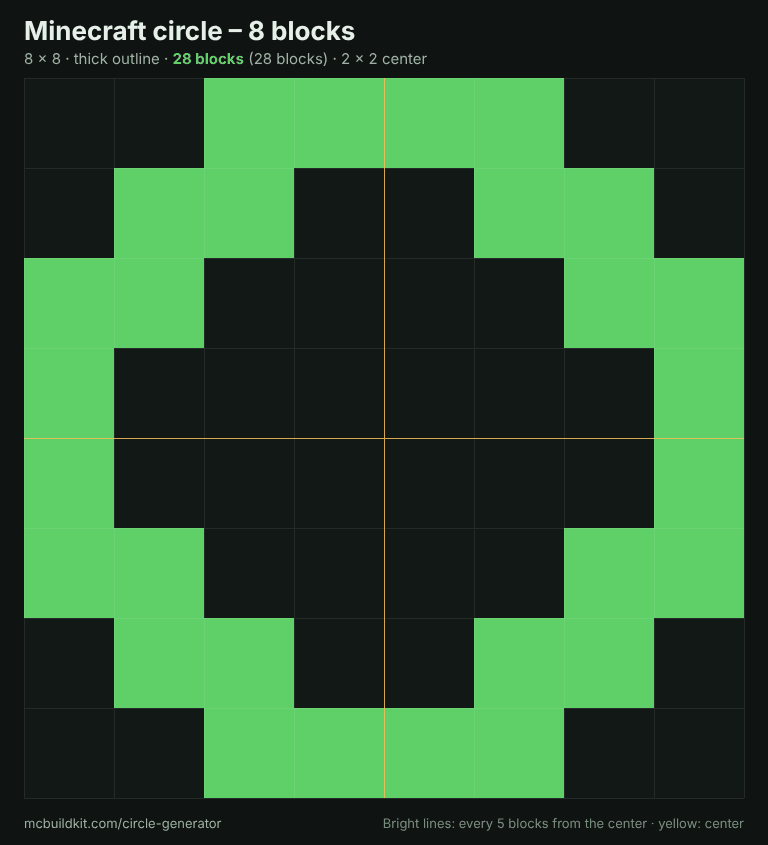
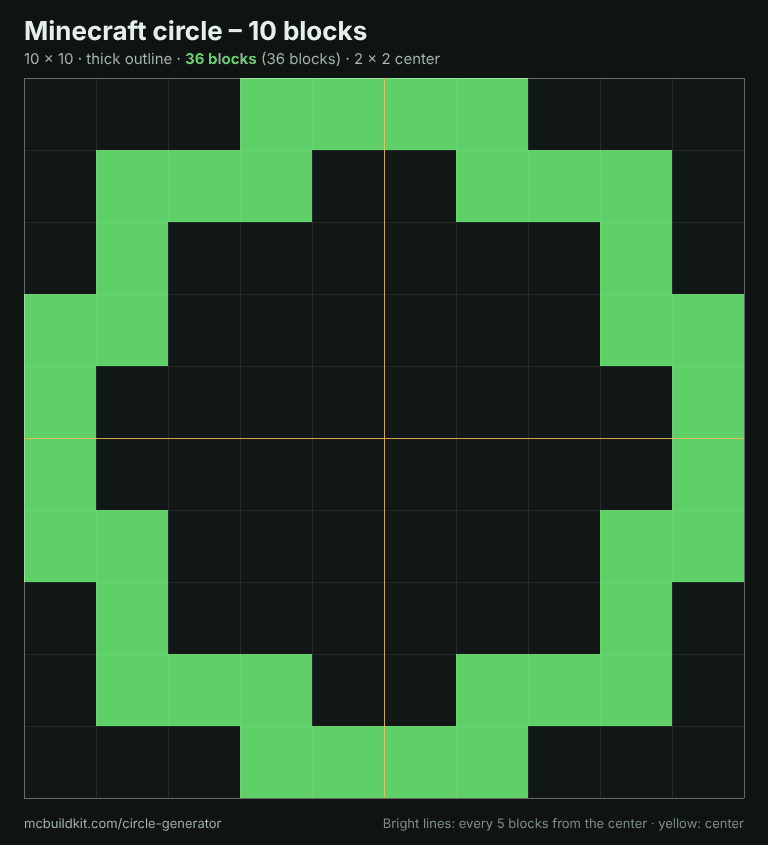
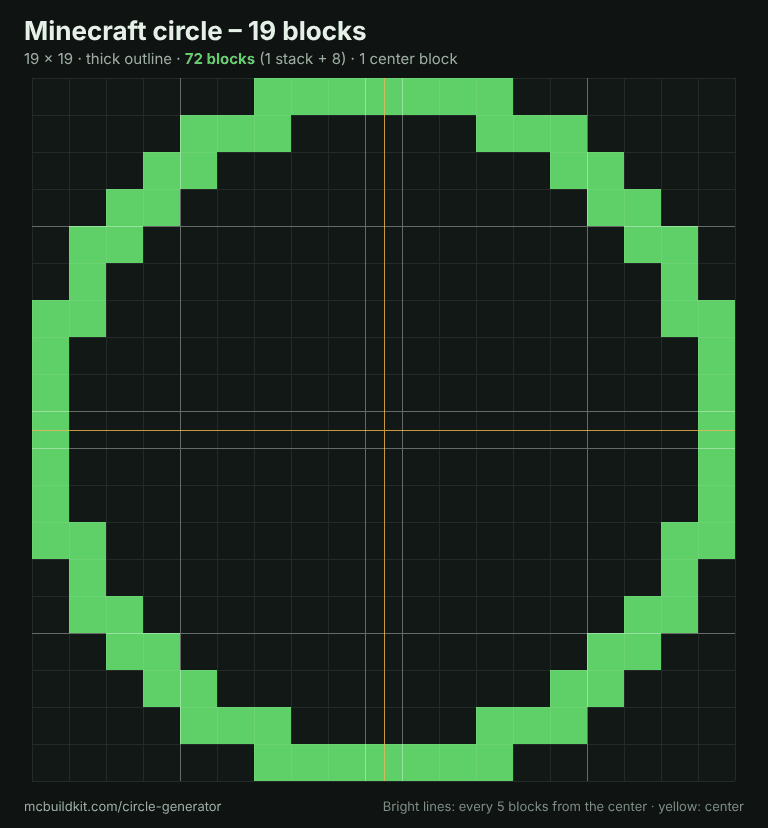
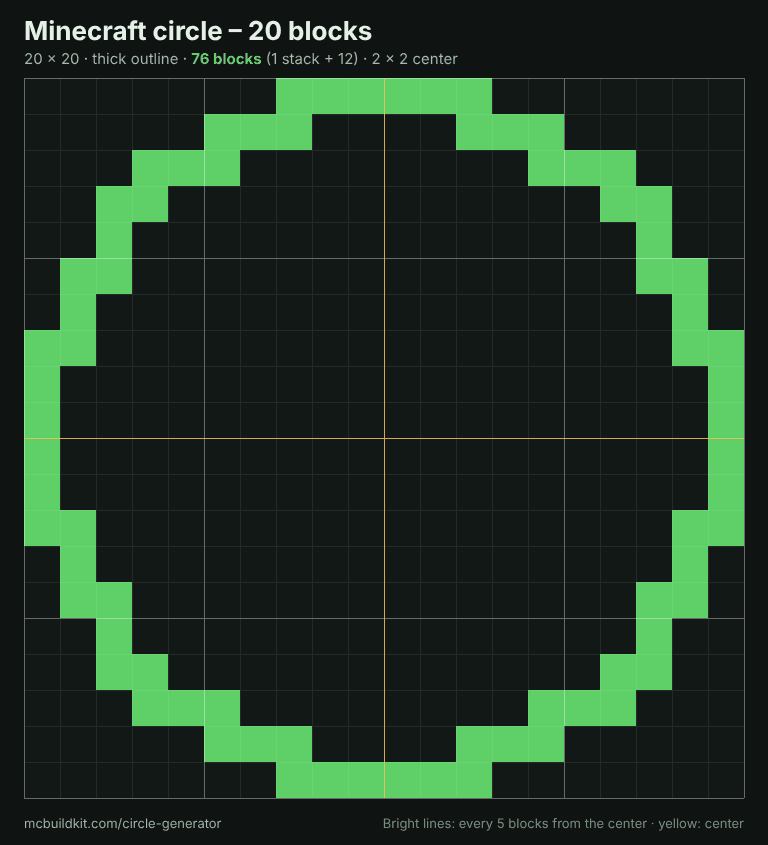
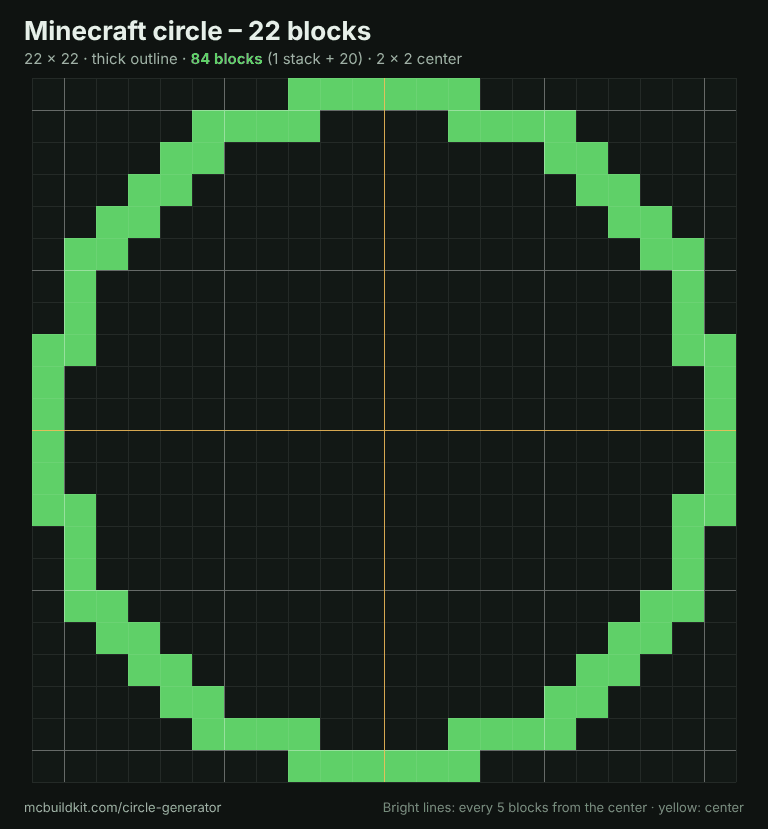
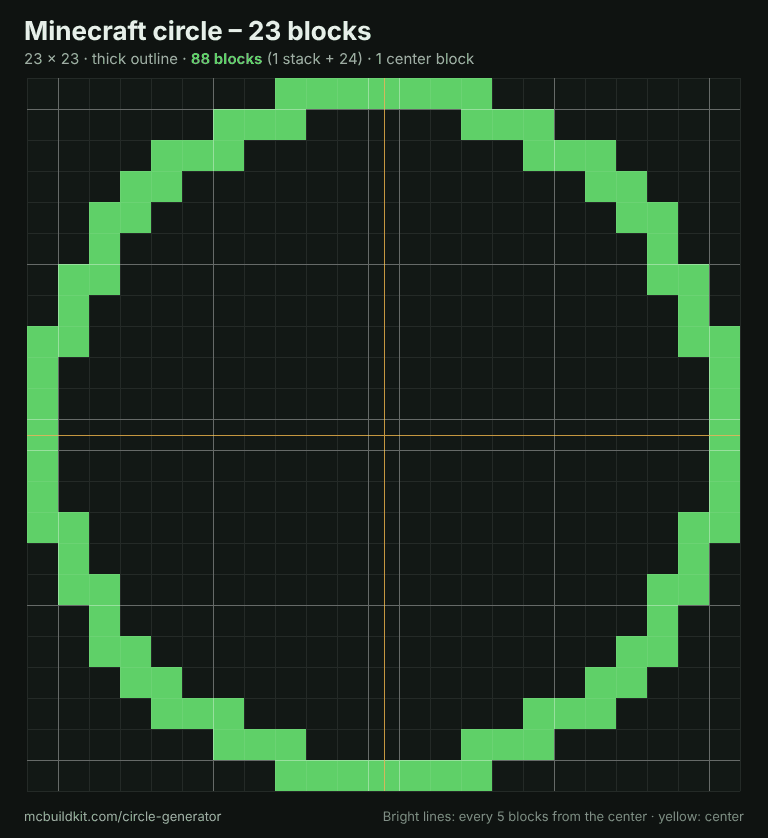
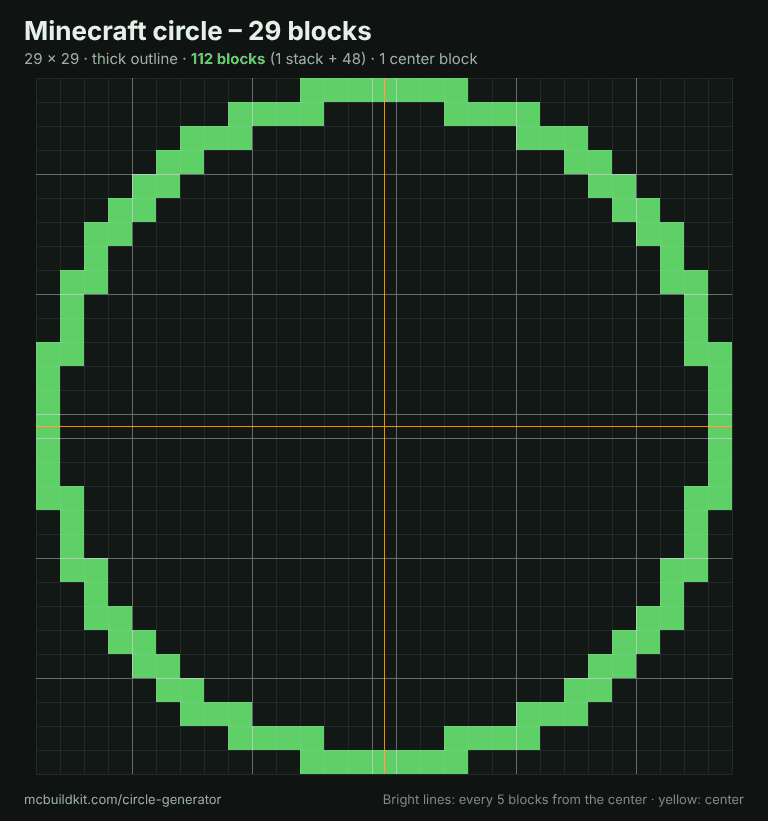
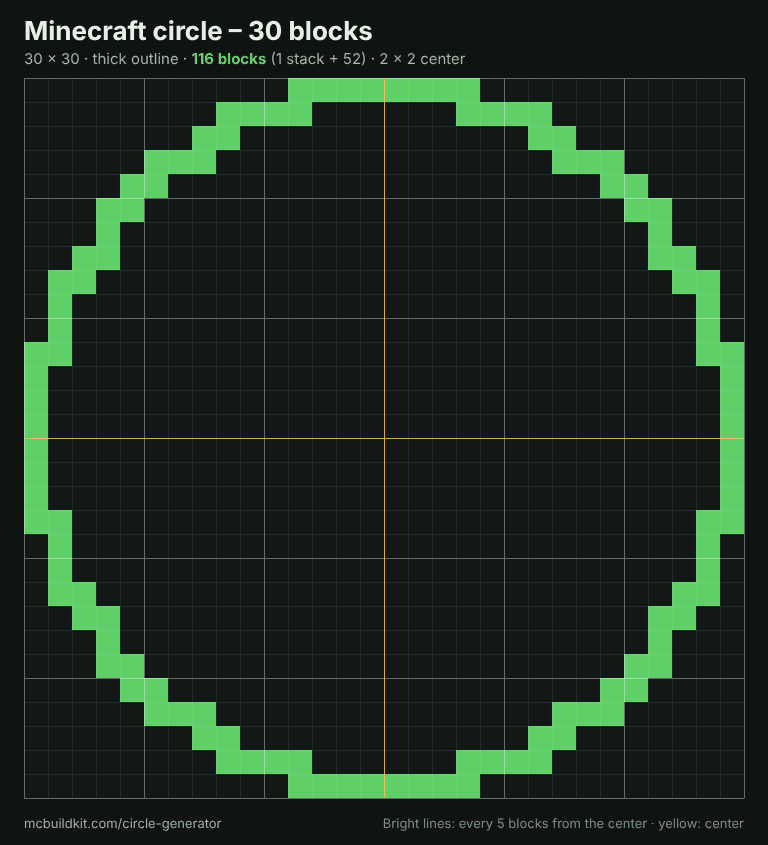
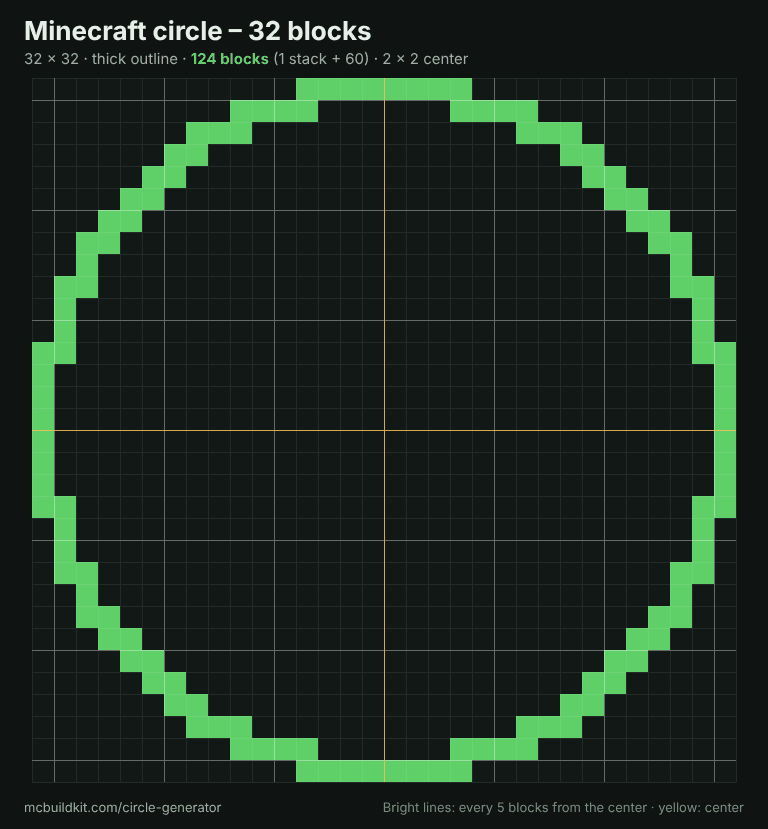
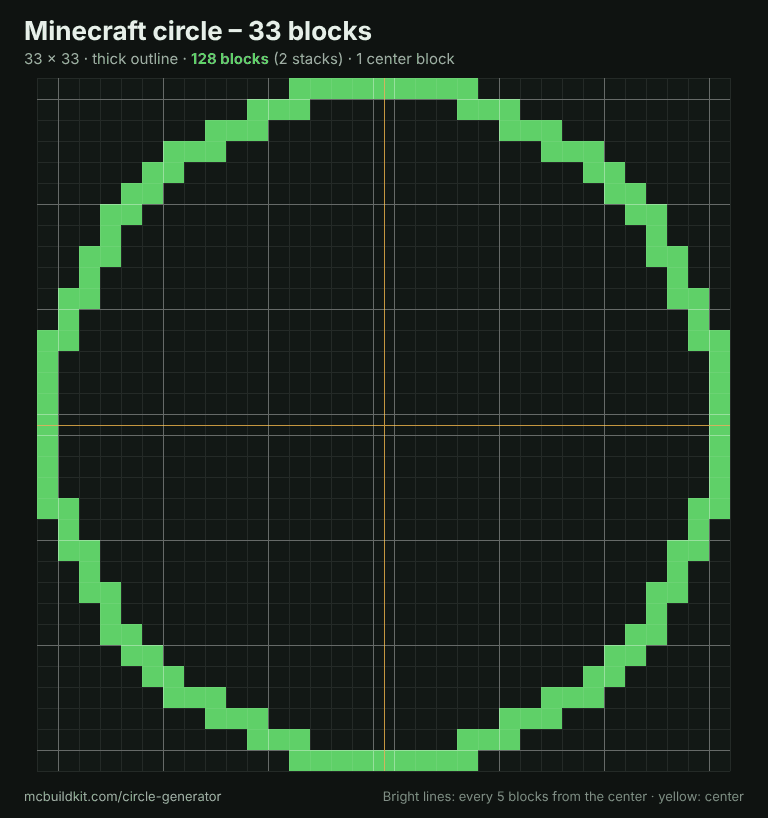
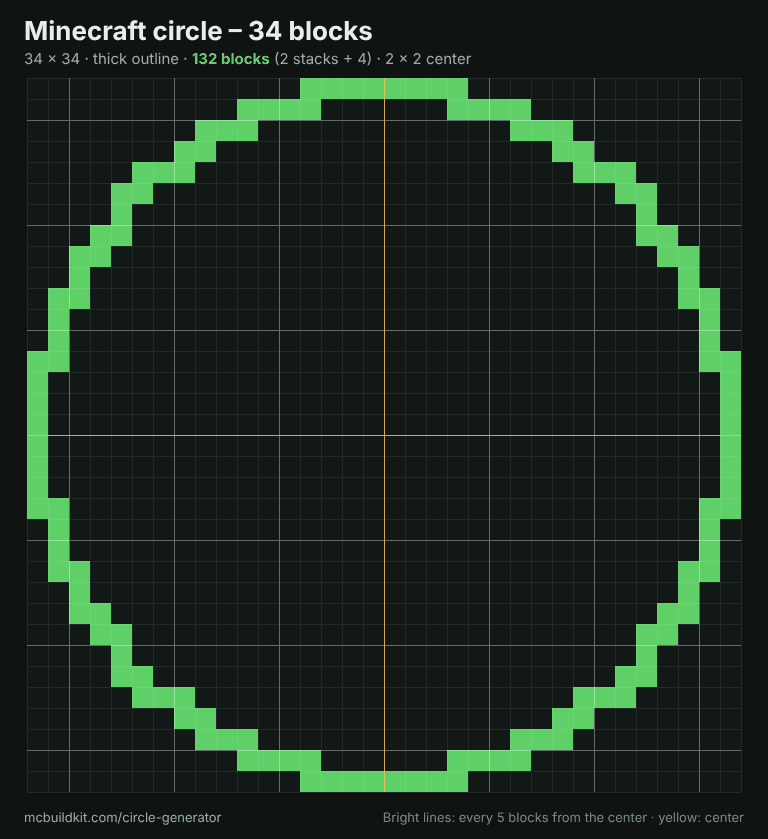
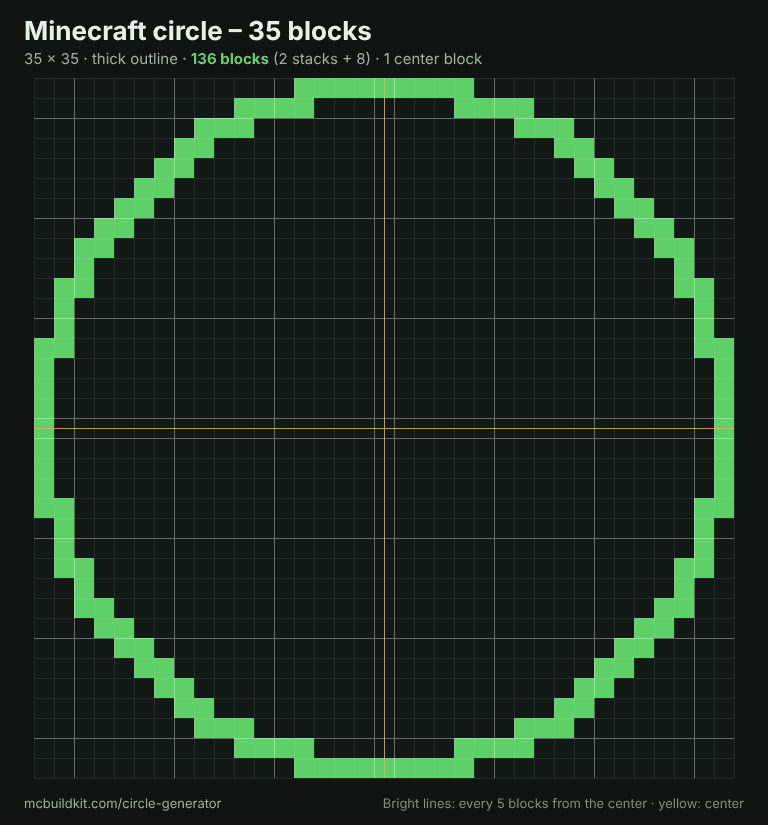
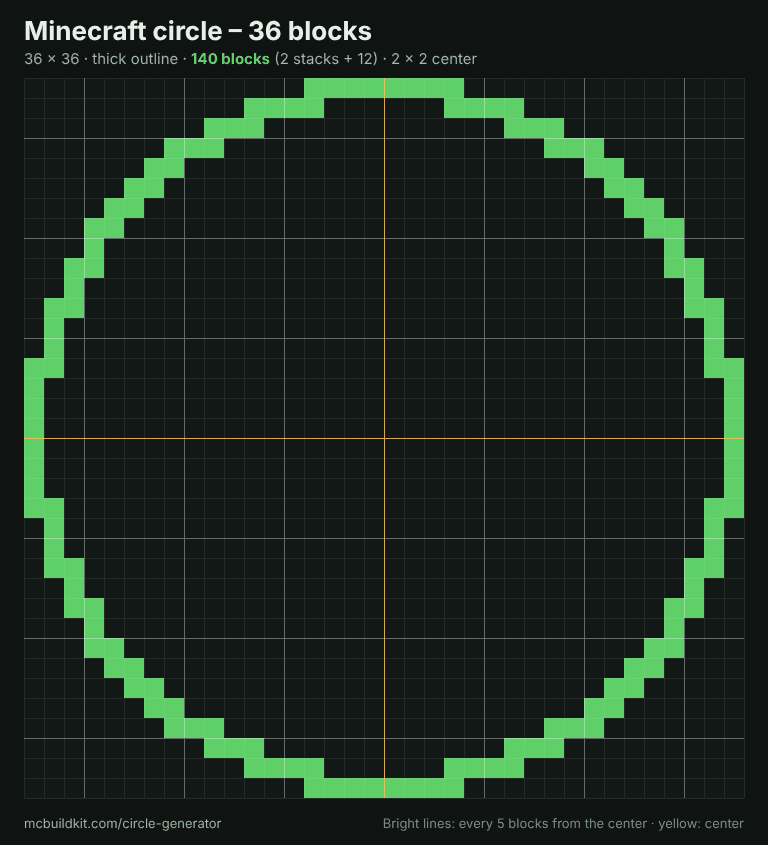
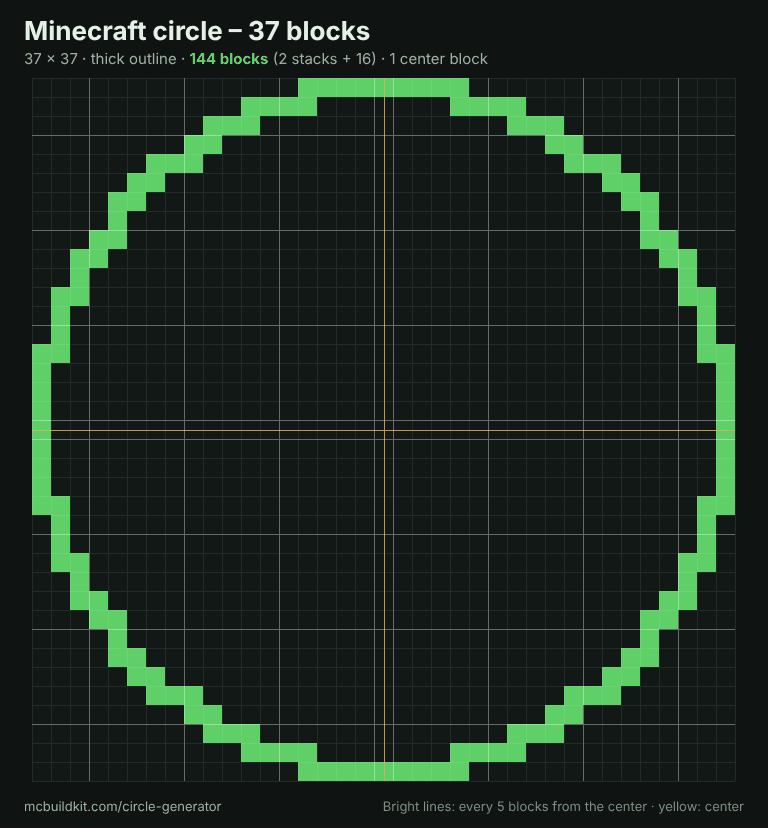
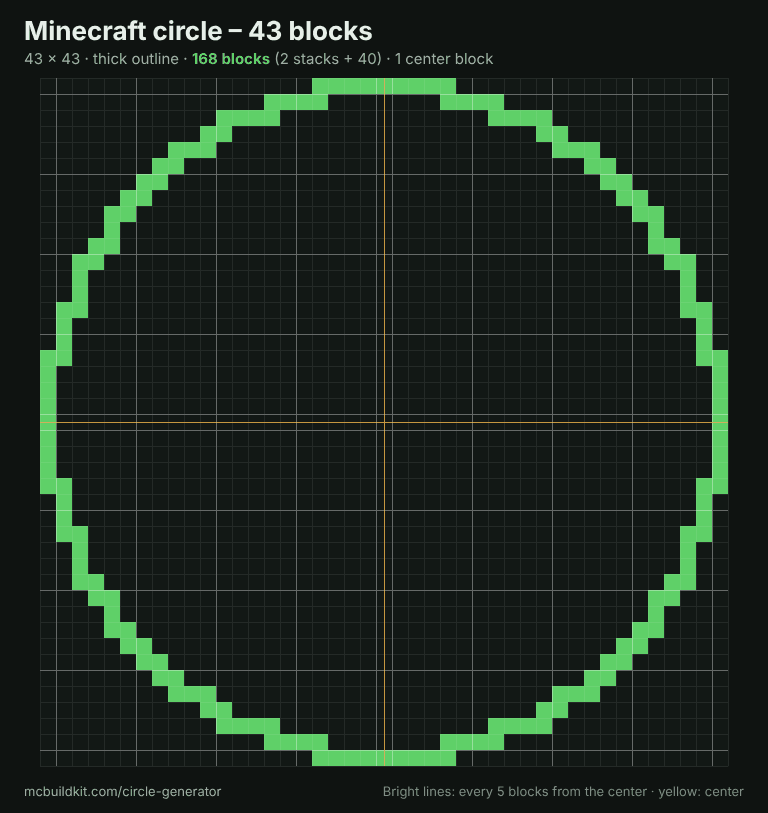
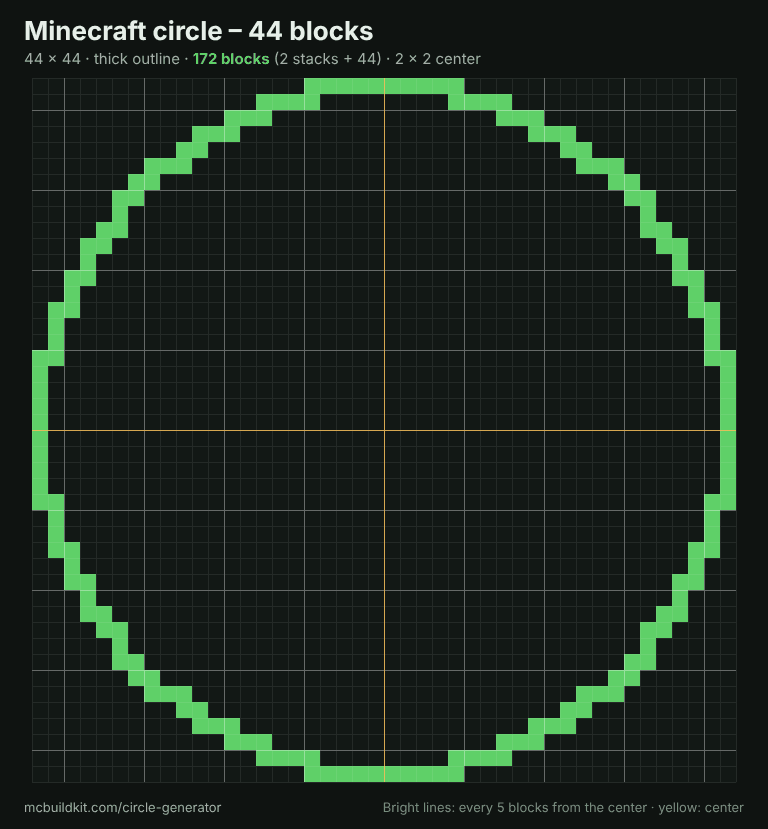
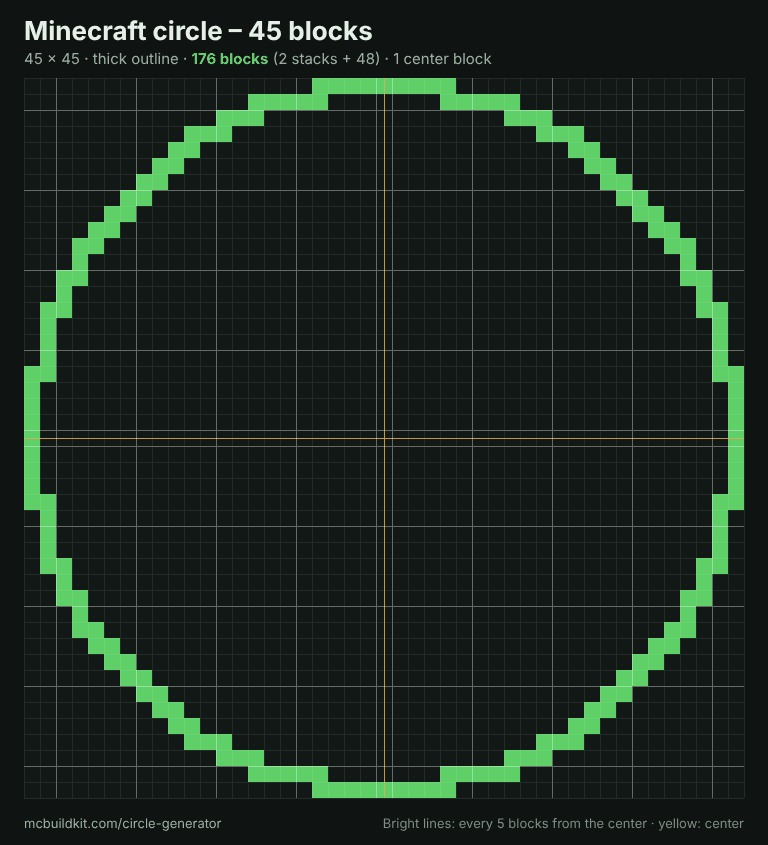
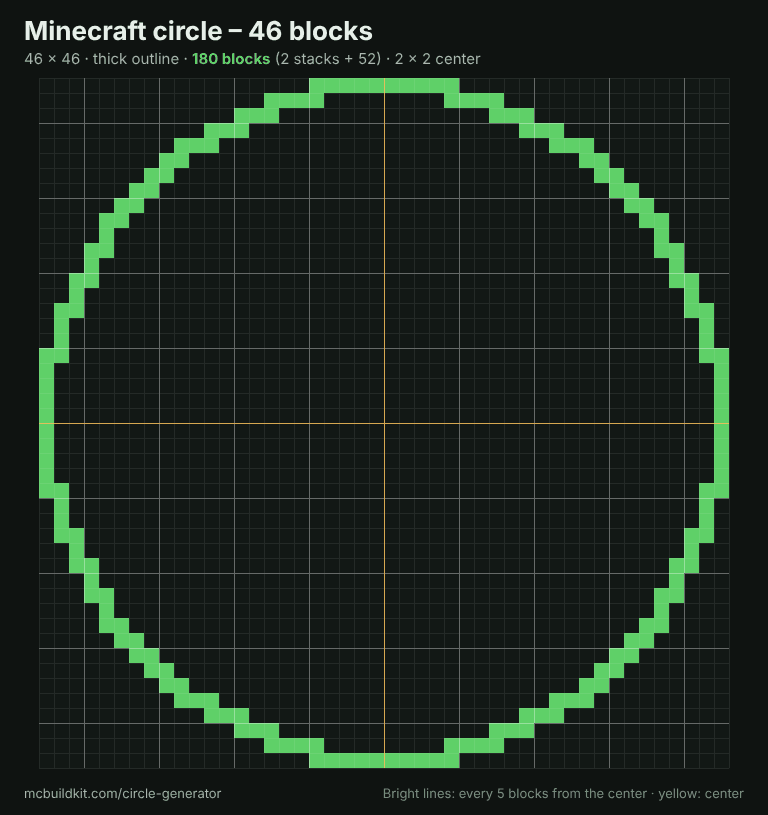
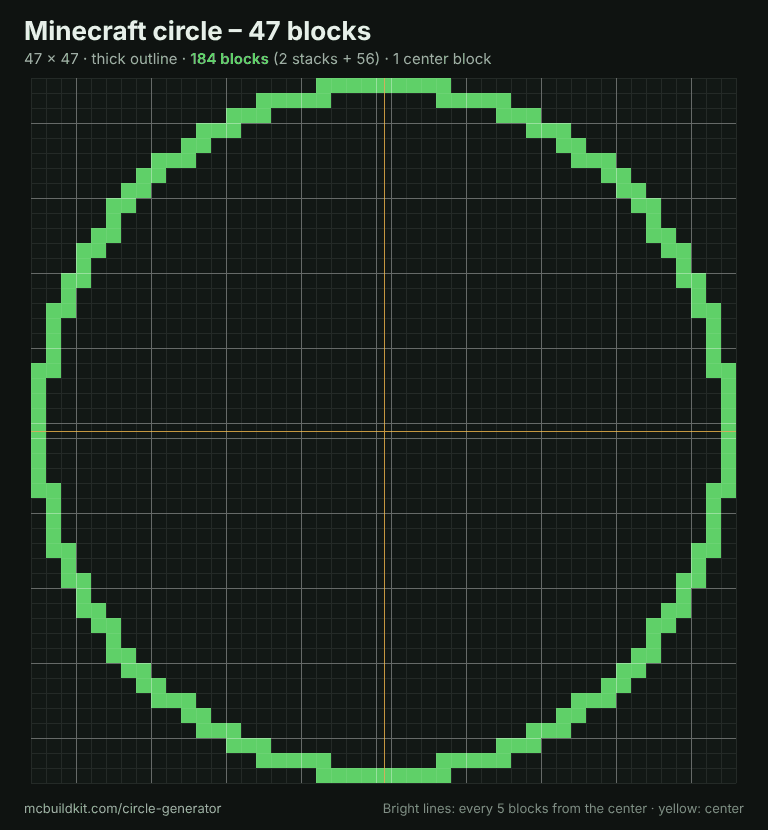
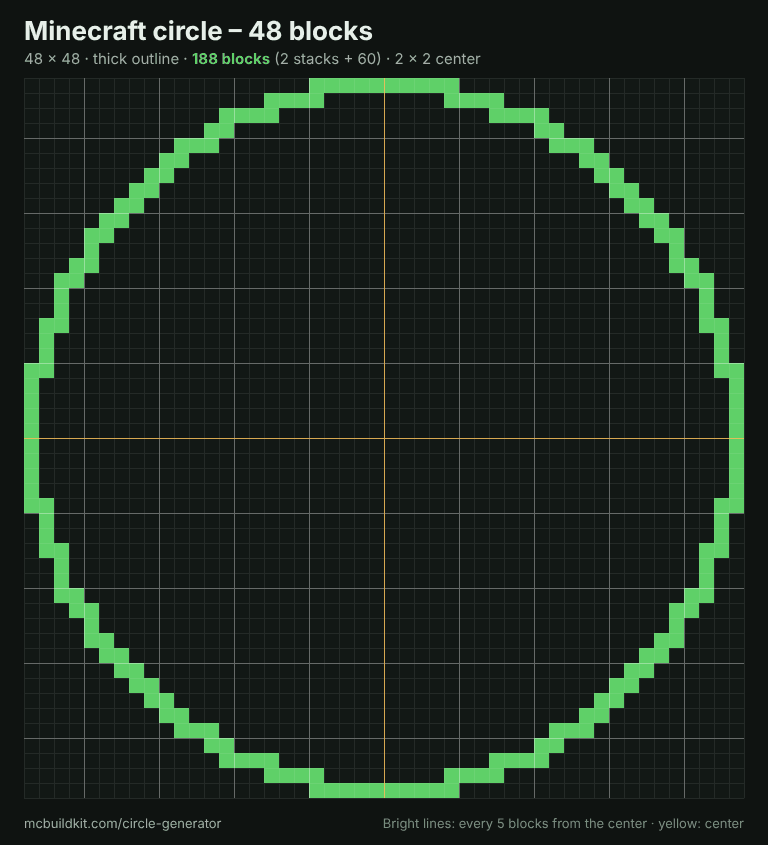
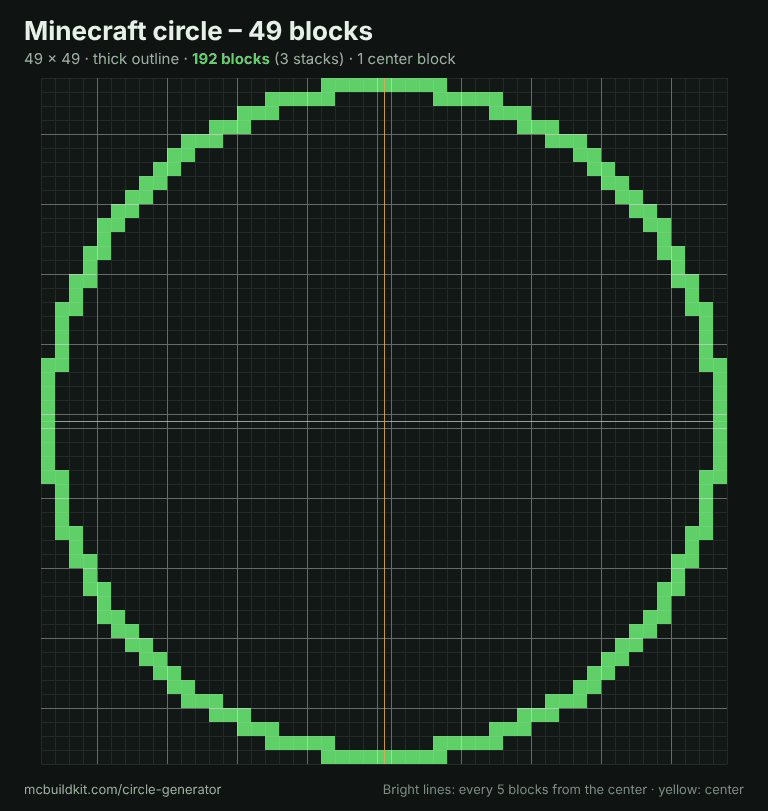
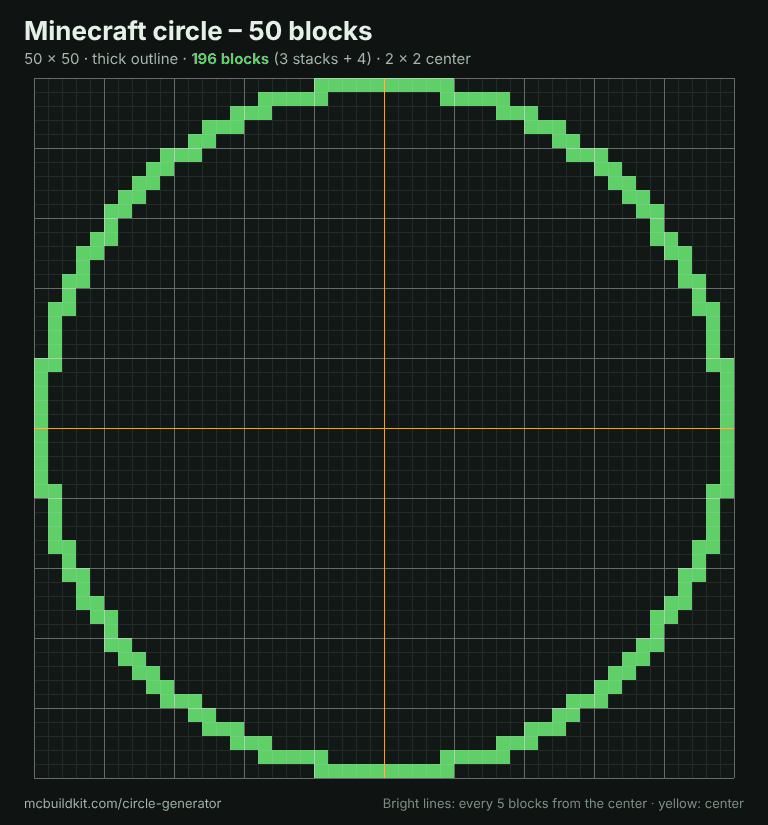
Want a ready-made picture instead? These circle charts are drawn with exactly the same algorithm as the generator above, in the default thick style with a 1-block outline. Each one shows the full grid, brighter lines every 5 blocks counted out from the center, yellow center lines and the total block count. Tap a chart to open the full-size PNG, save it to your phone or print it.
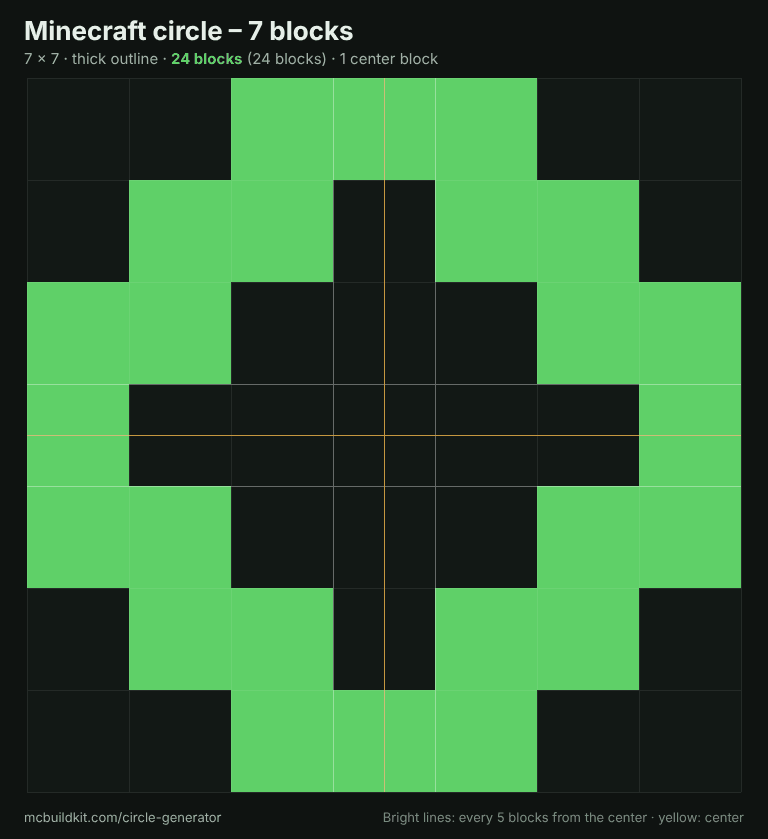 7 × 724 blocksOpen in generator
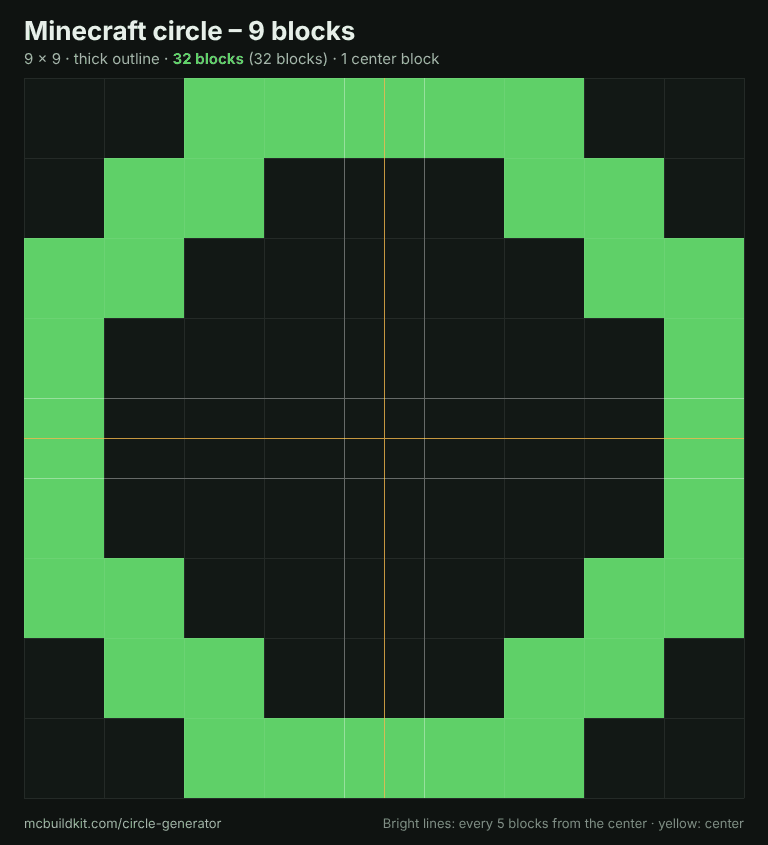 9 × 932 blocksOpen in generator
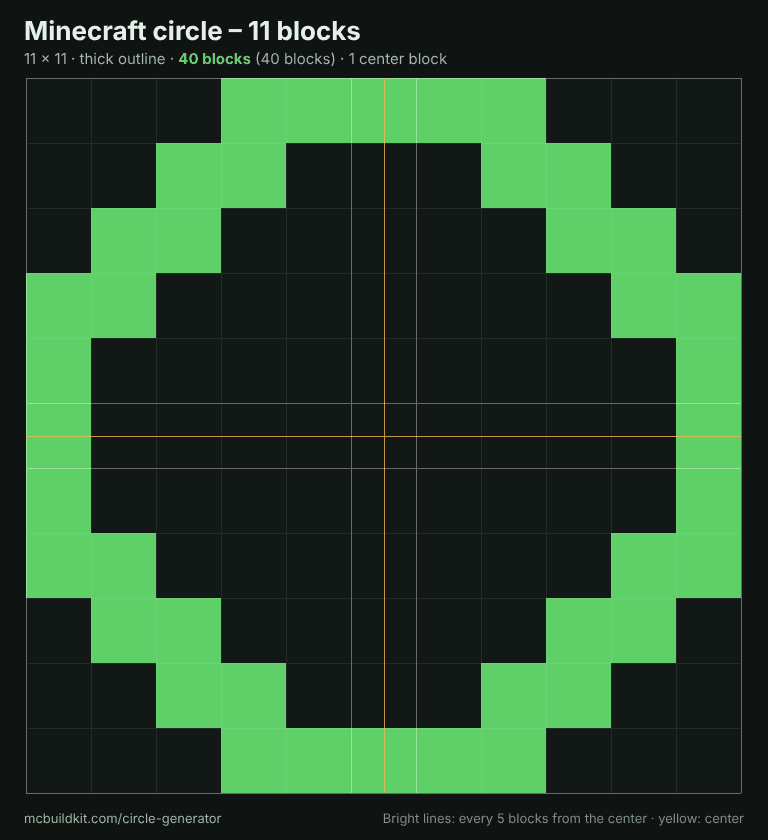 11 × 1140 blocksOpen in generator
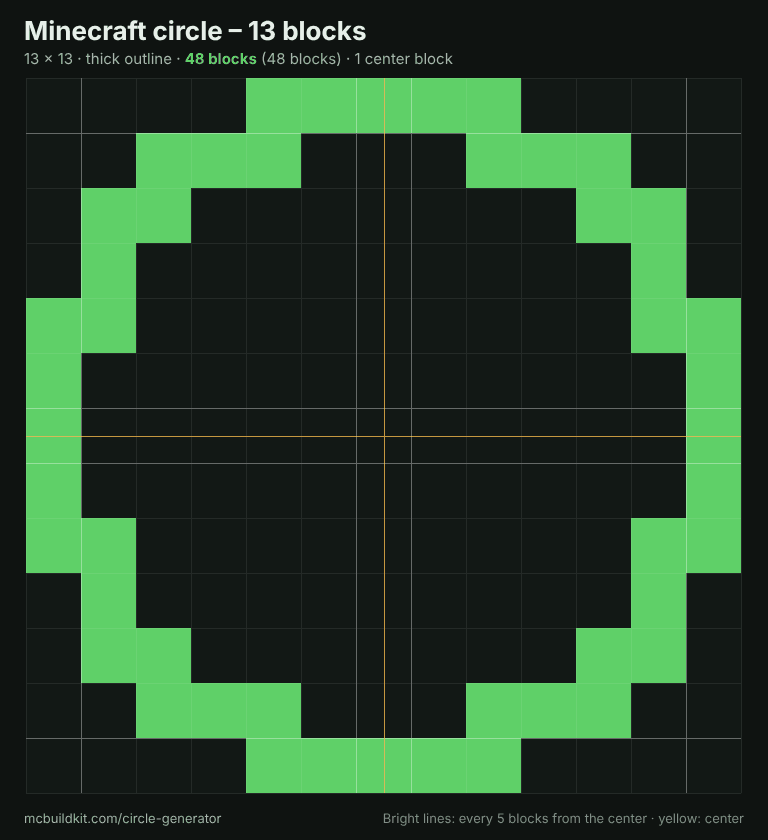 13 × 1348 blocksOpen in generator
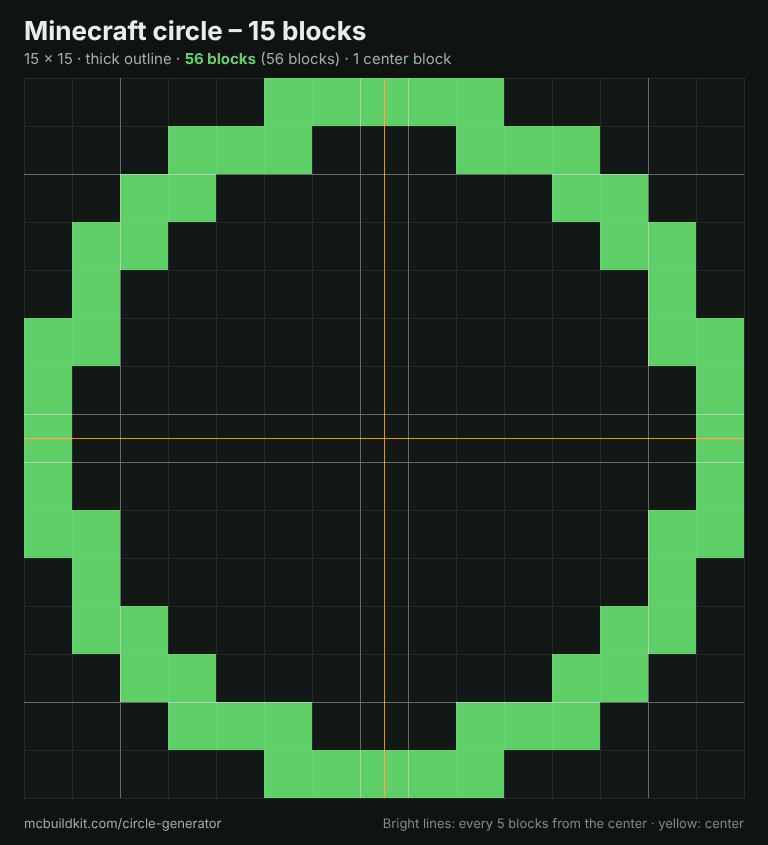 15 × 1556 blocksOpen in generator
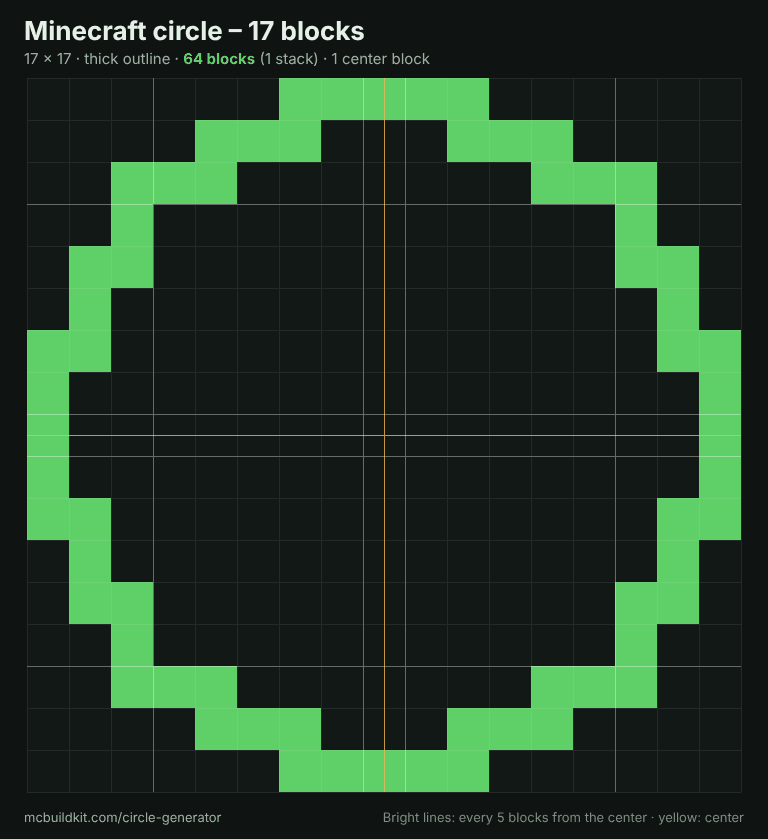 17 × 1764 blocksOpen in generator
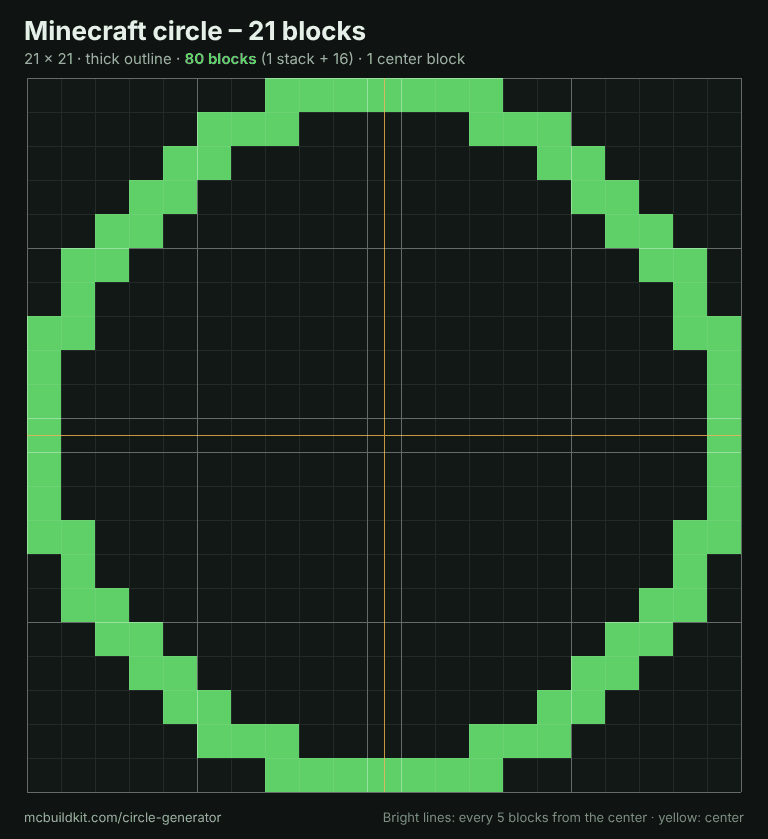 21 × 2180 blocksOpen in generator
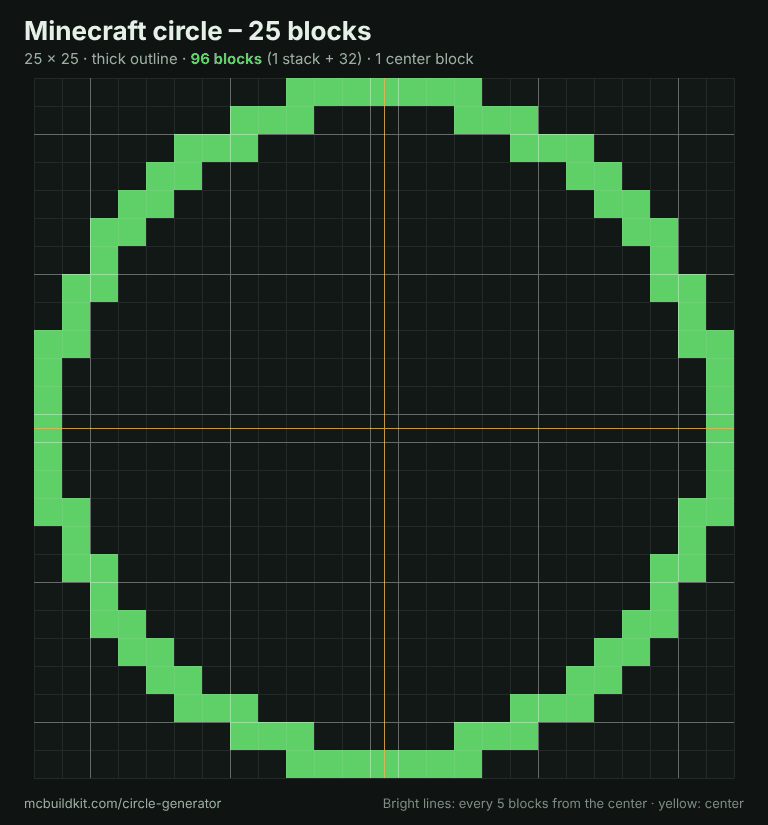 25 × 2596 blocksOpen in generator
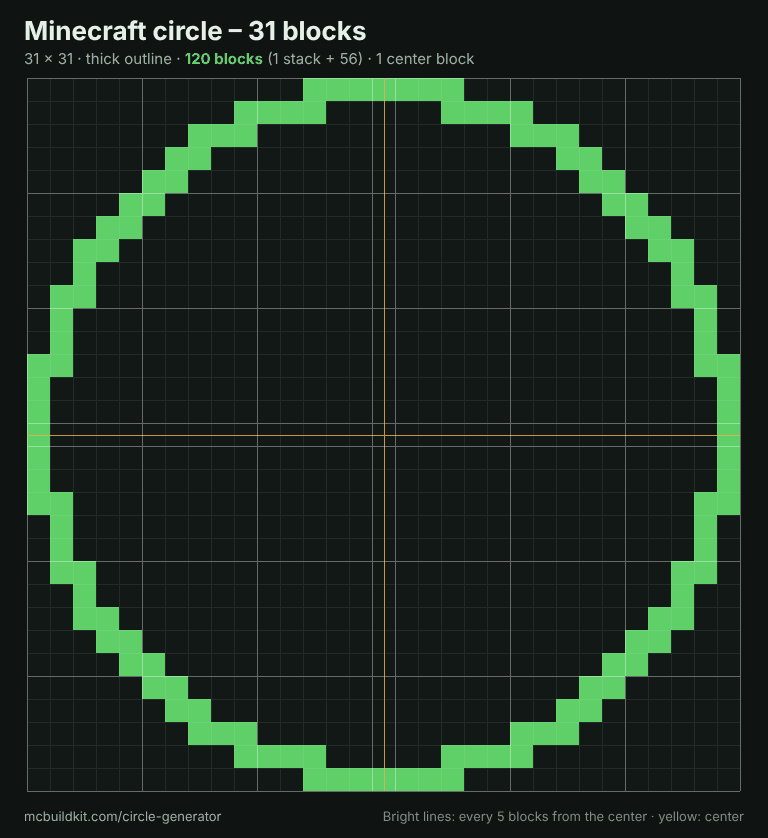 31 × 31120 blocksOpen in generator
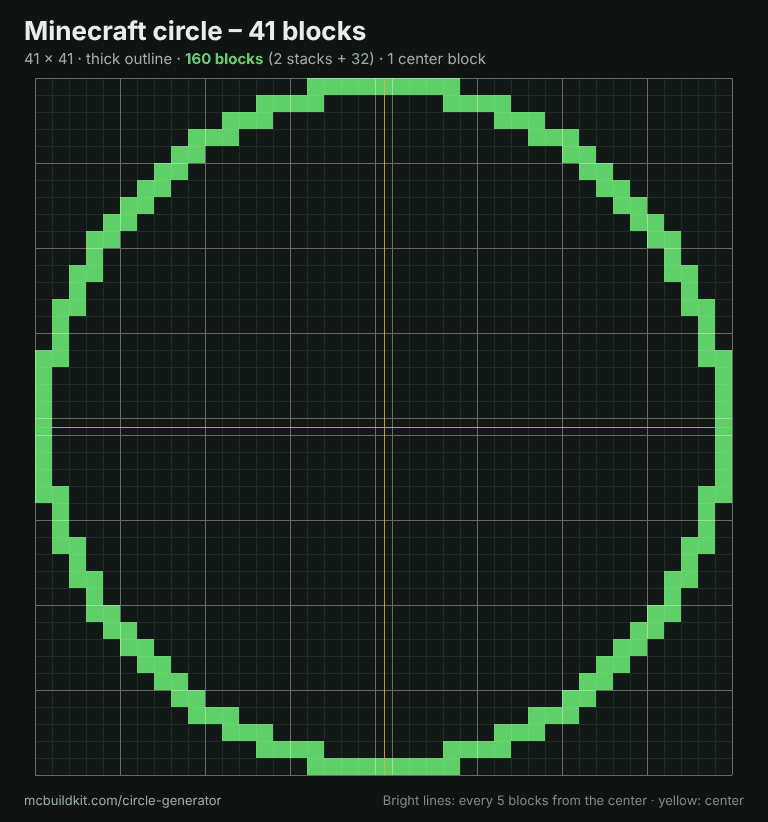 41 × 41160 blocksOpen in generator
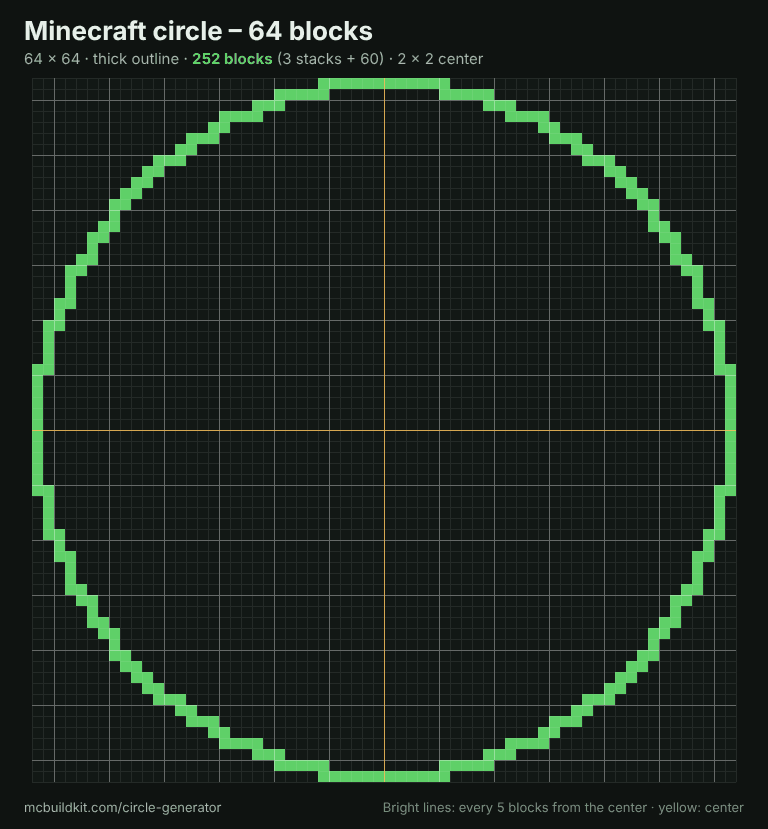 64 × 64252 blocksOpen in generator
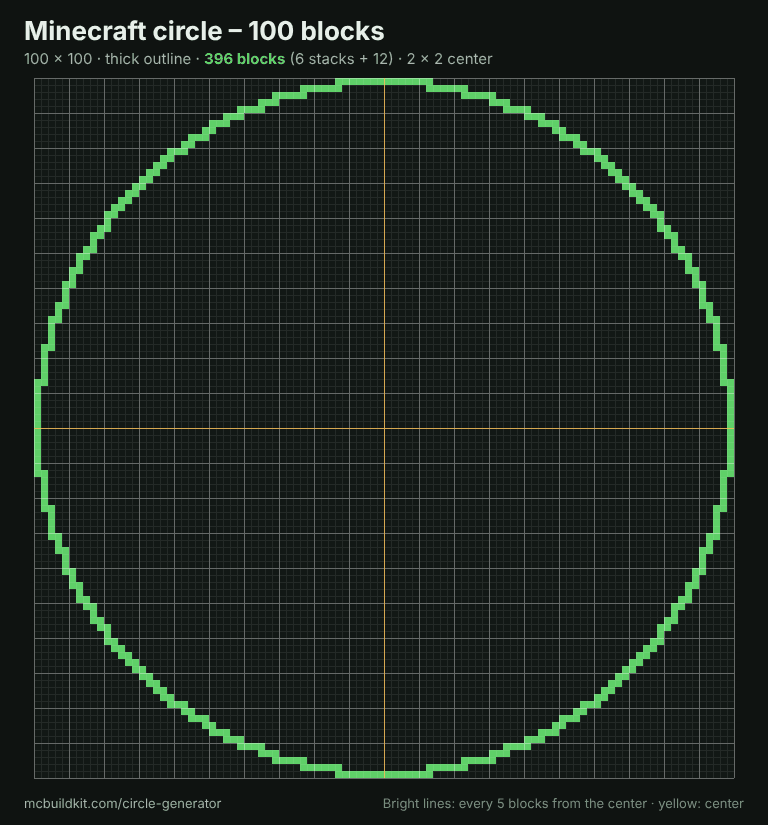 100 × 100396 blocksOpen in generator
More sizes: charts for every diameter from 5 to 50, plus 55, 60, 64, 70, 75, 80, 90 and 100 blocks. The number opens the PNG chart, edit opens that size in the generator, where you can switch to thin or filled, widen the ring or download a schematic.
- 5edit
- 6edit
- 8edit
- 10edit
- 12edit
- 14edit
- 16edit
- 18edit
- 19edit
- 20edit
- 22edit
- 23edit
- 24edit
- 26edit
- 27edit
- 28edit
- 29edit
- 30edit
- 32edit
- 33edit
- 34edit
- 35edit
- 36edit
- 37edit
- 38edit
- 39edit
- 40edit
- 42edit
- 43edit
- 44edit
- 45edit
- 46edit
- 47edit
- 48edit
- 49edit
- 50edit
- 55edit
- 60edit
- 70edit
- 75edit
- 80edit
- 90edit
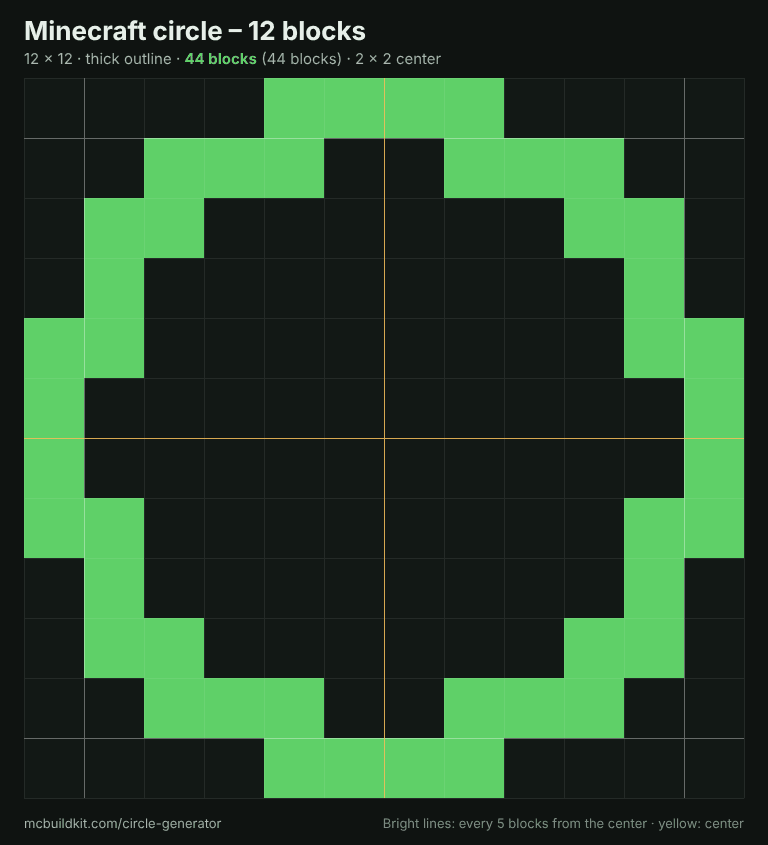
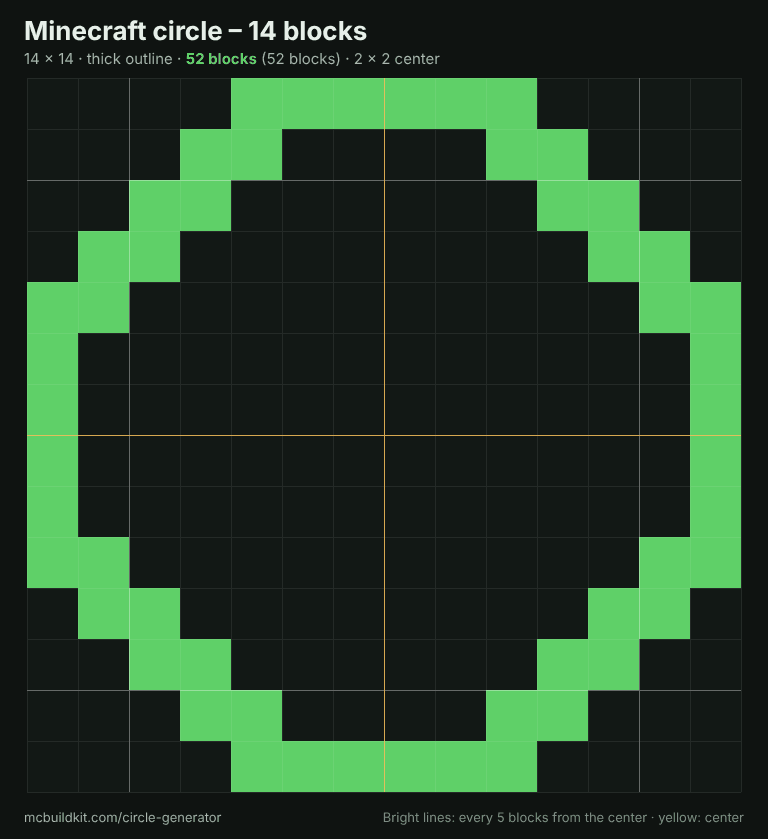
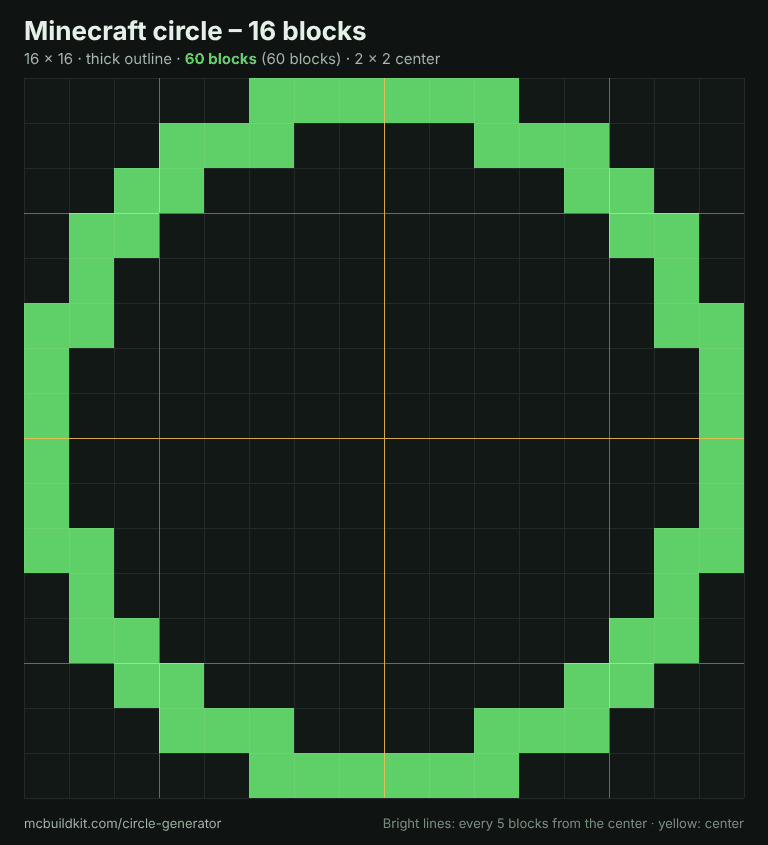
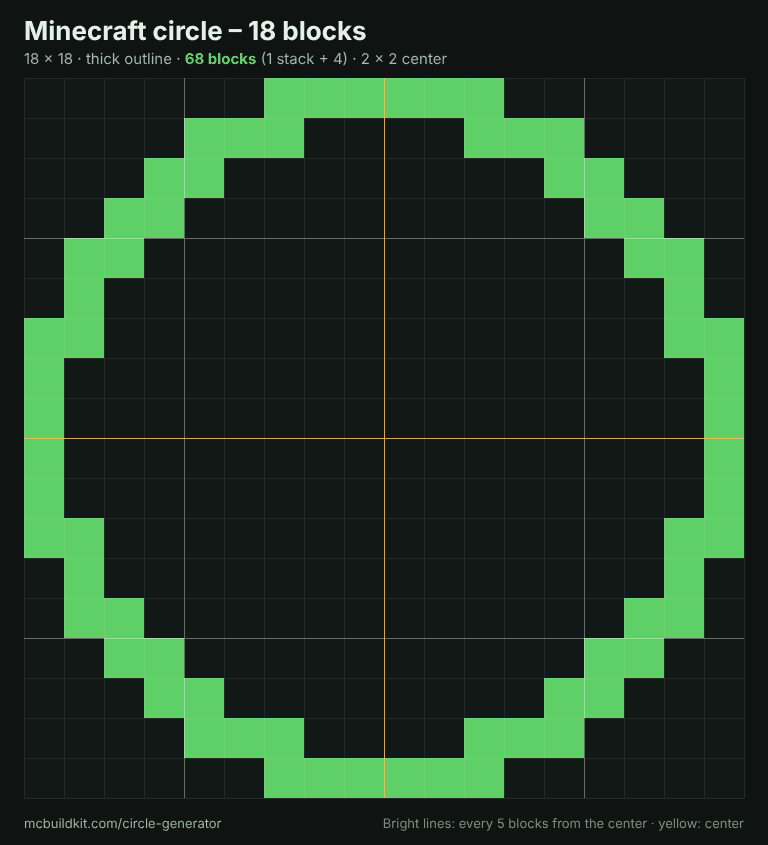
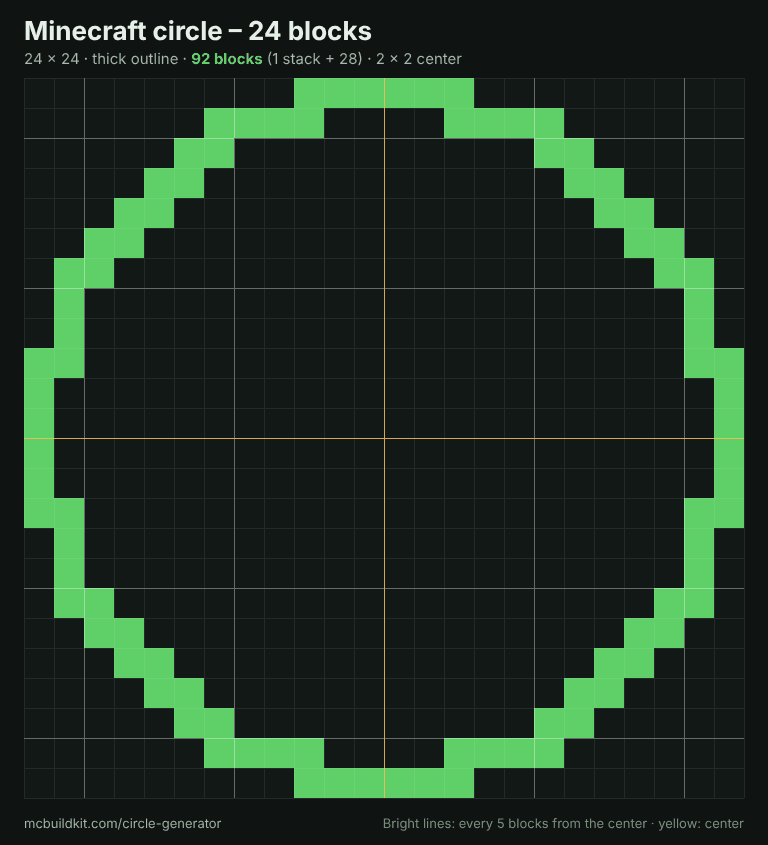
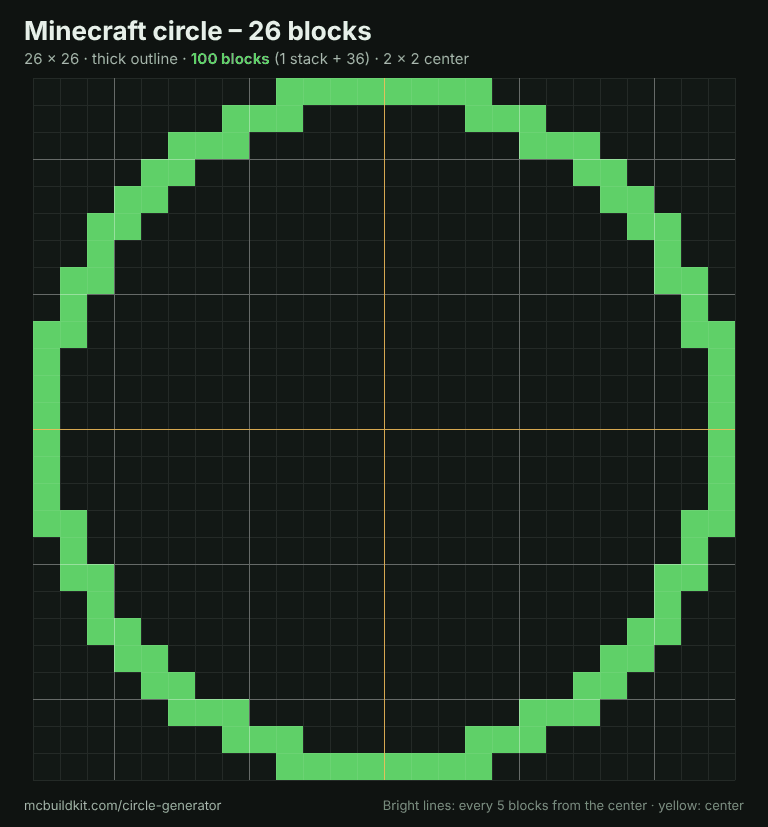
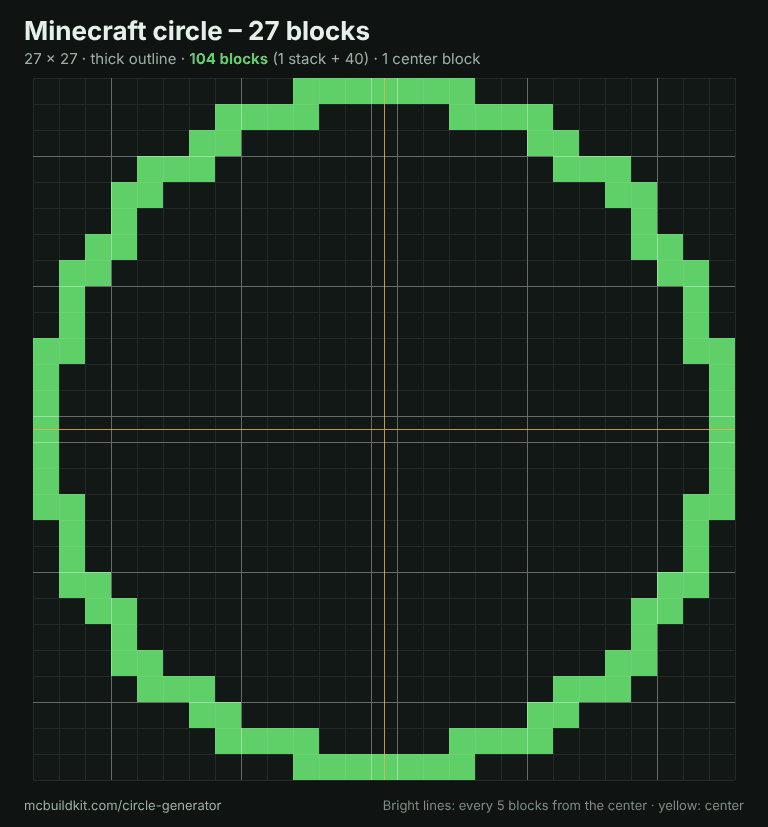
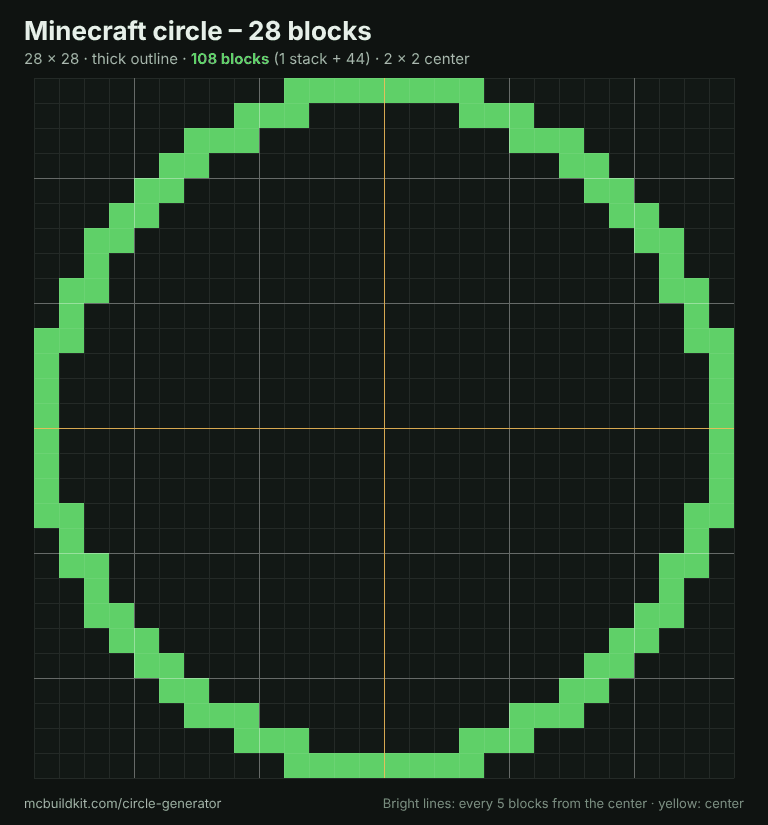
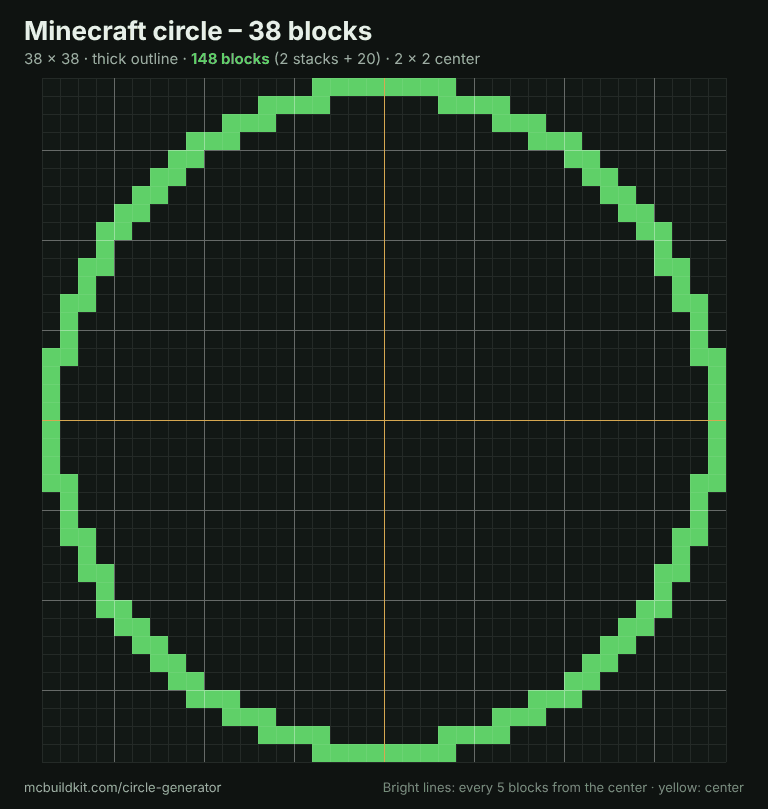
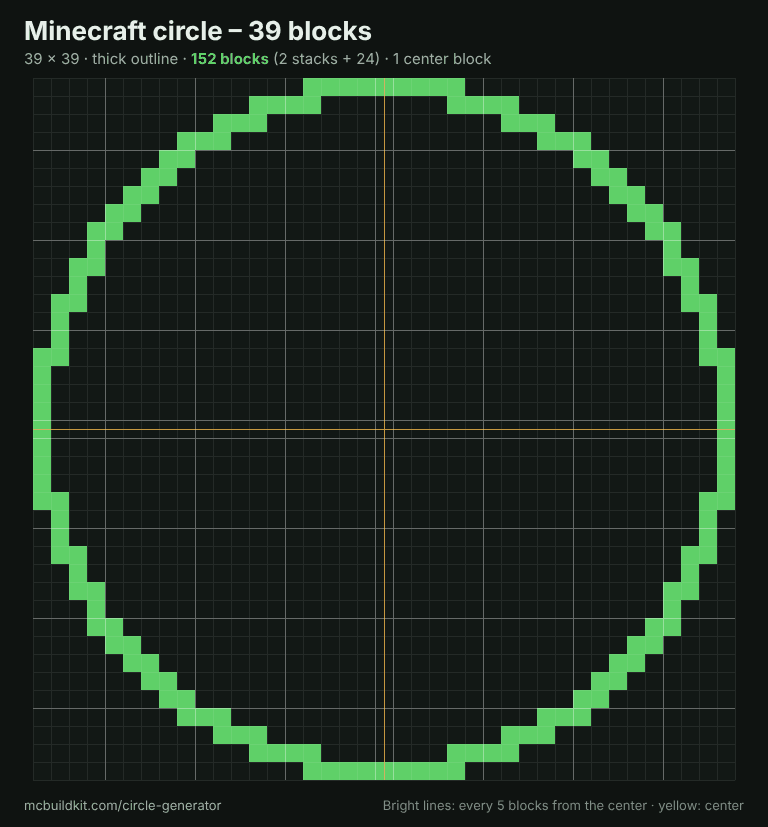
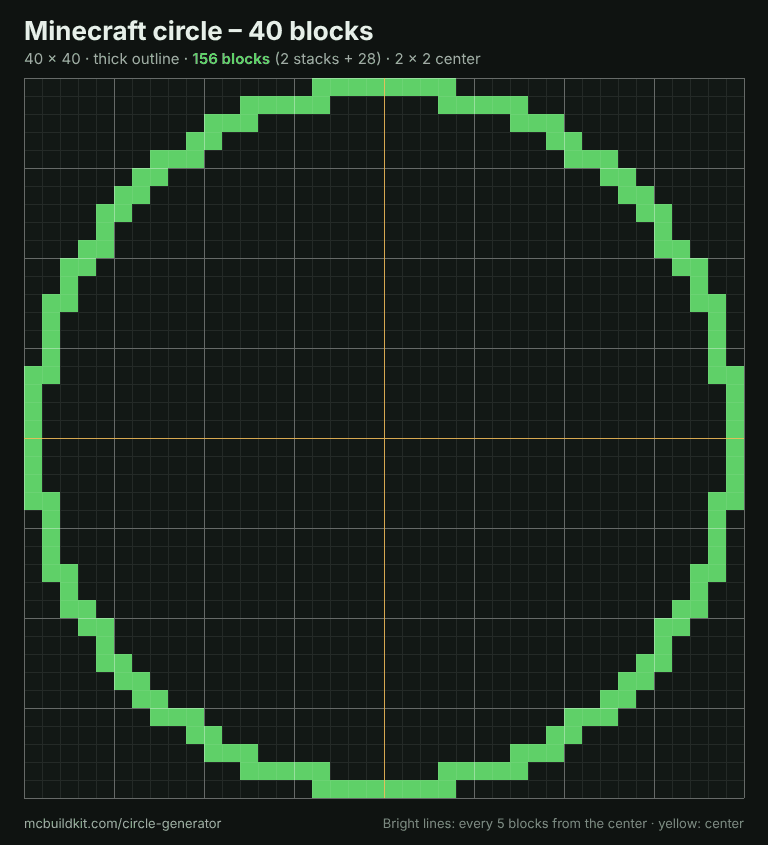
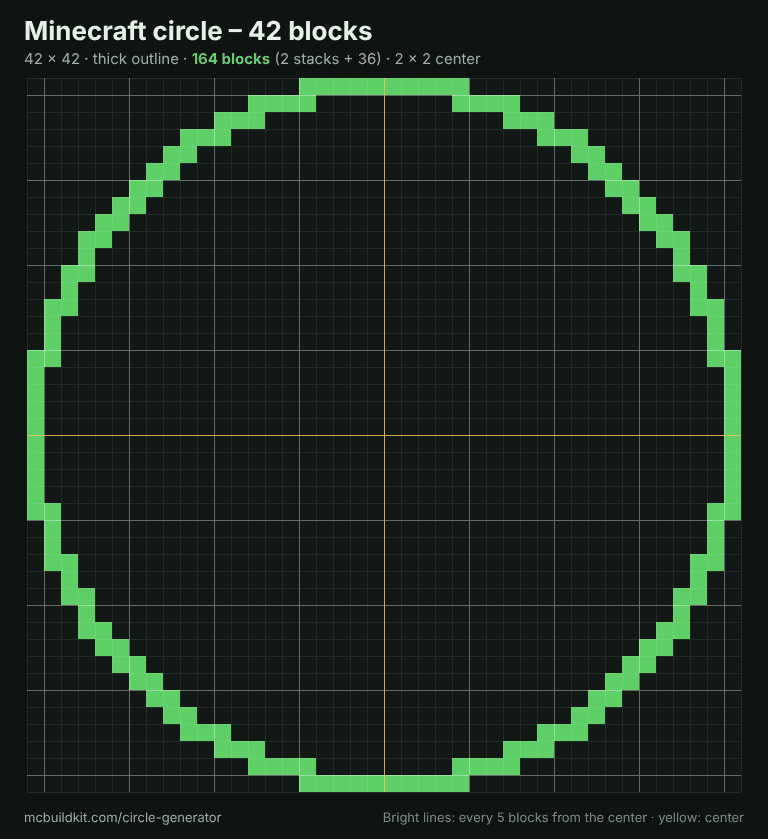
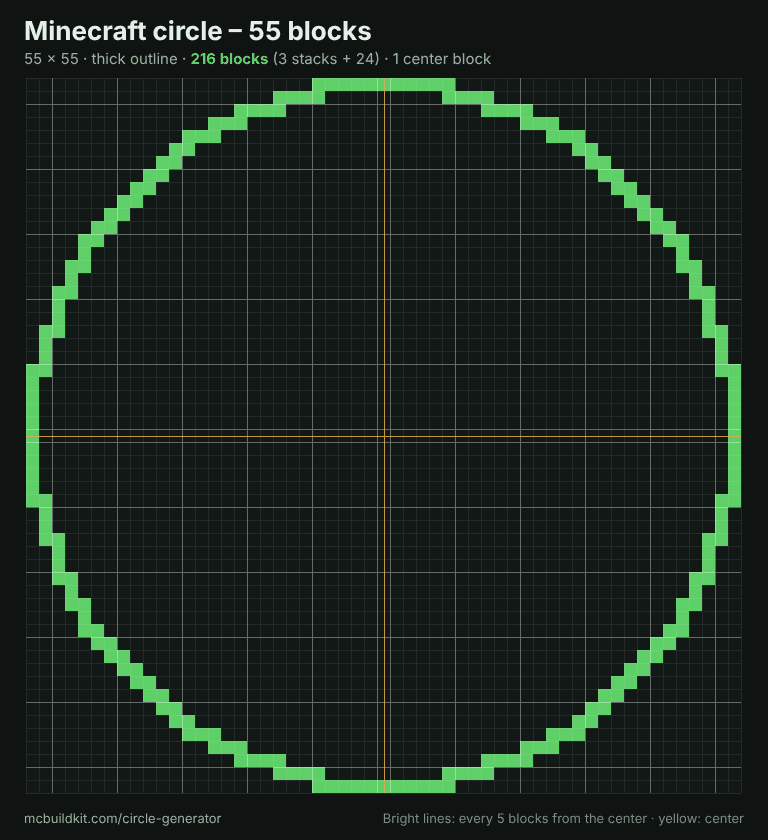
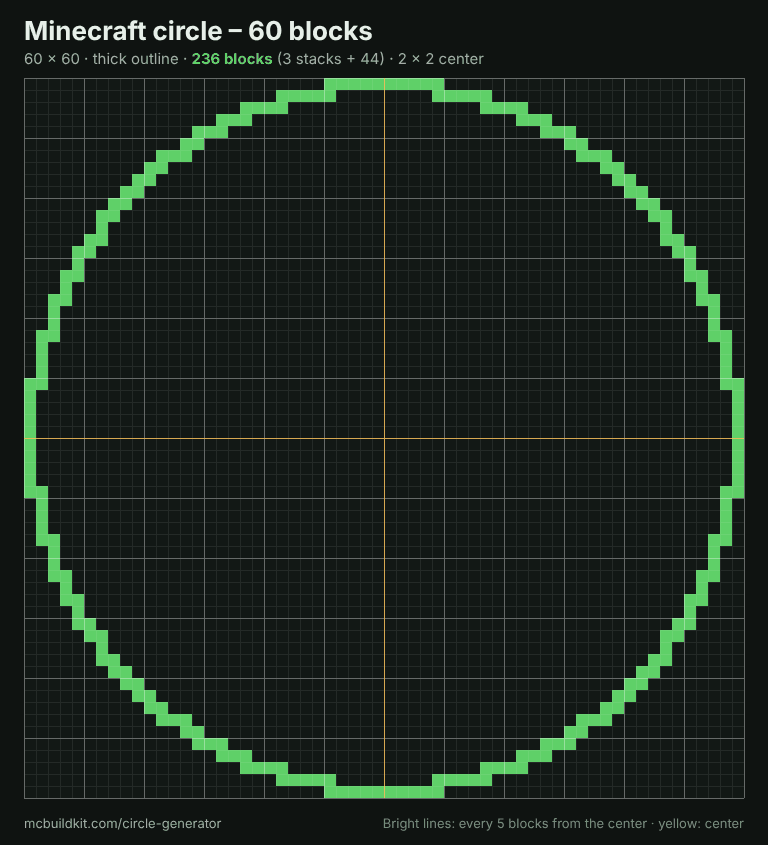
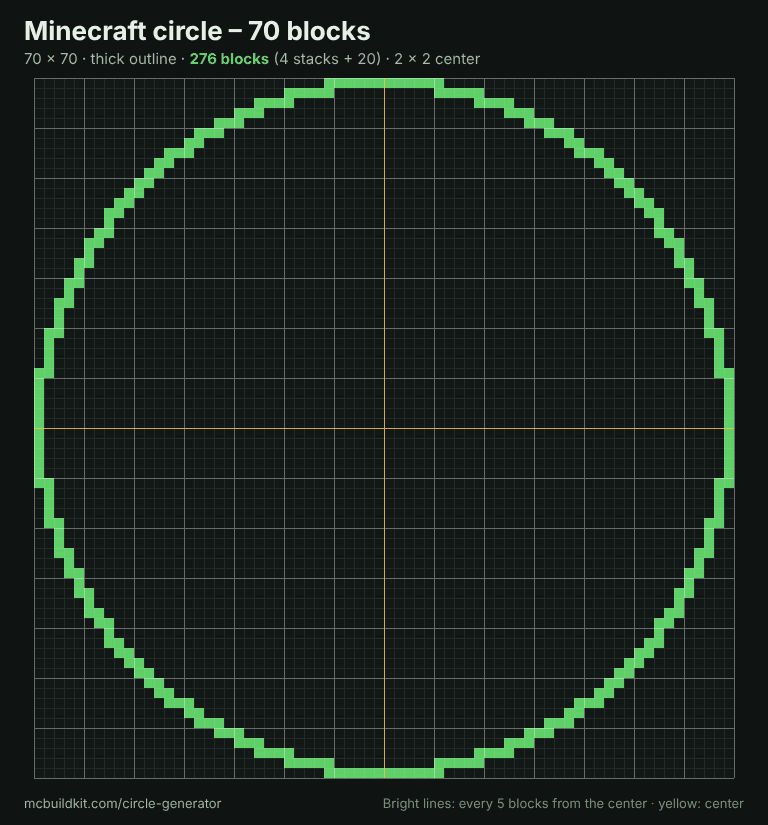
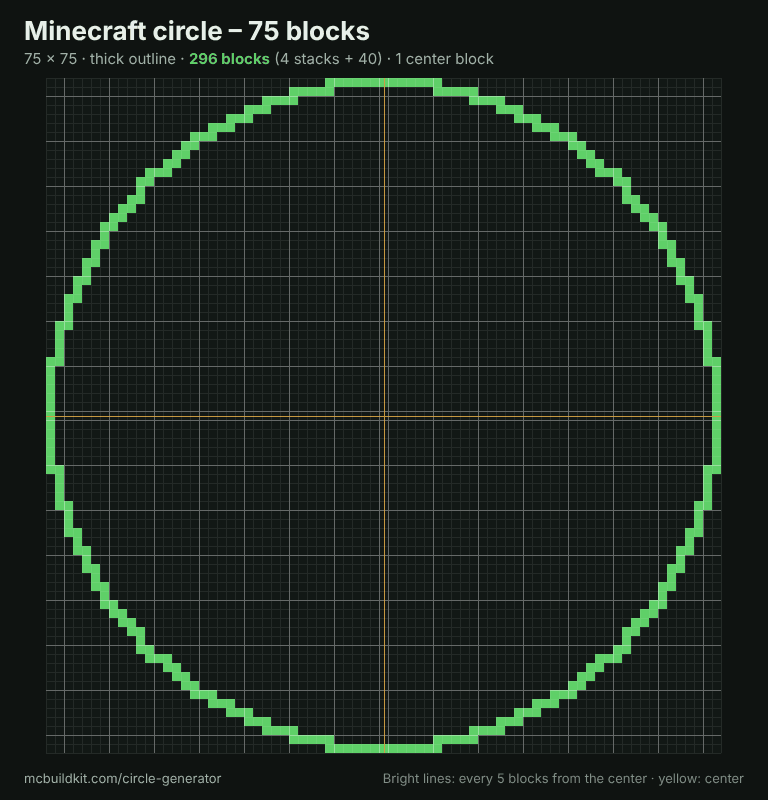
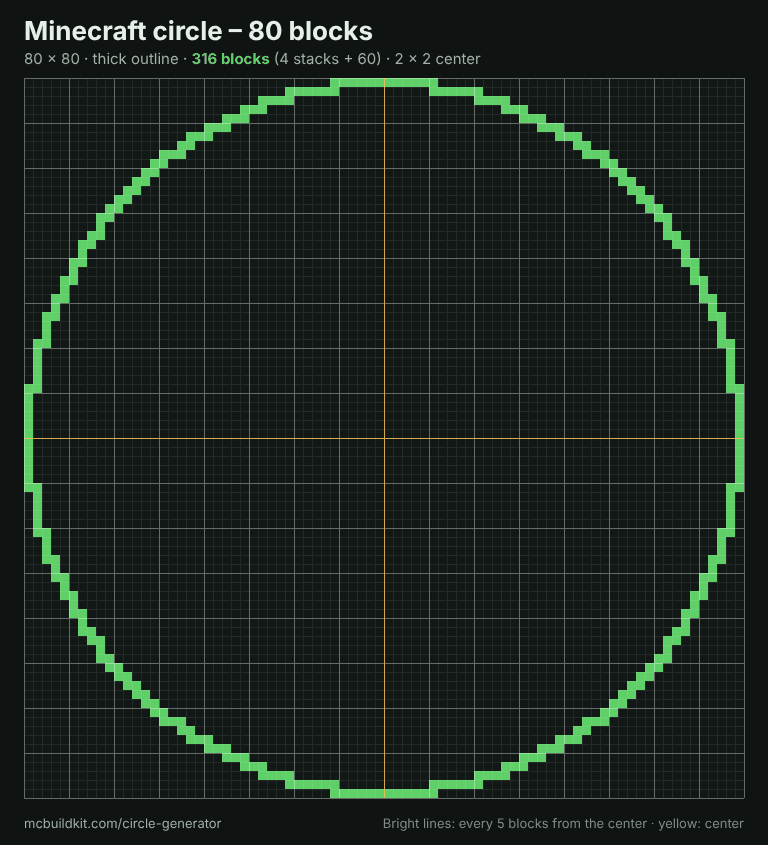
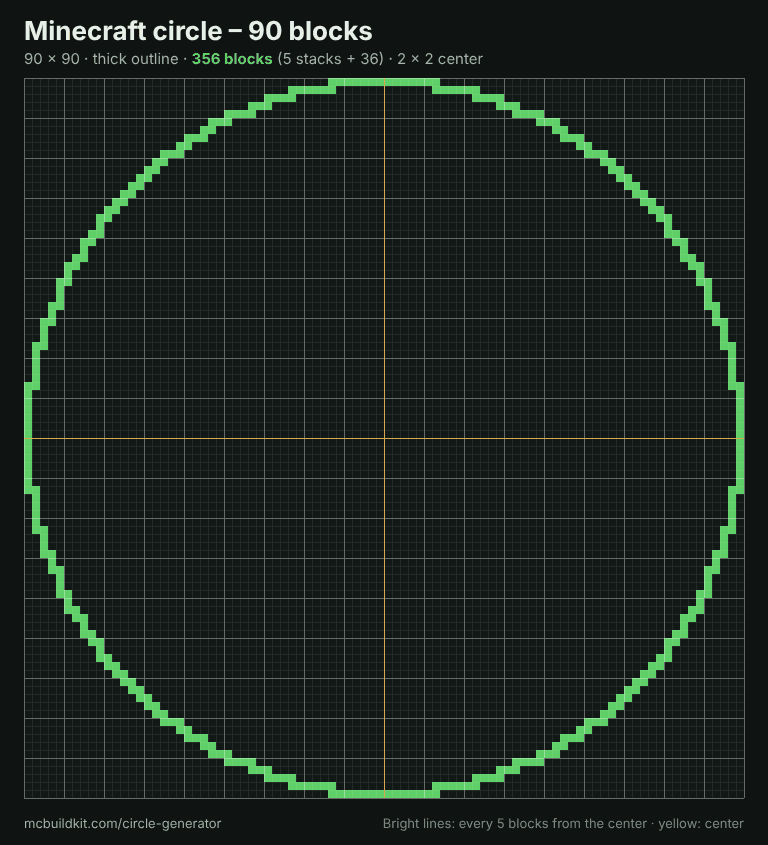
Blocks needed per circle size
Block counts for a 1-block outline (thin or thick) and a solid disc, from the same generator. A thick outline from this tool always uses 4 × (diameter − 1) blocks, so a 21-block circle needs 80.
| Diameter | Thin | Thick | Filled | Thick in stacks |
|---|---|---|---|---|
| 5 | 12 | 16 | 21 | 16 blocks |
| 7 | 16 | 24 | 37 | 24 blocks |
| 9 | 24 | 32 | 69 | 32 blocks |
| 11 | 28 | 40 | 97 | 40 blocks |
| 13 | 36 | 48 | 137 | 48 blocks |
| 15 | 40 | 56 | 177 | 56 blocks |
| 17 | 48 | 64 | 225 | 1 stack |
| 19 | 52 | 72 | 293 | 1 stack + 8 |
| 21 | 56 | 80 | 349 | 1 stack + 16 |
| 25 | 68 | 96 | 489 | 1 stack + 32 |
| 31 | 84 | 120 | 749 | 1 stack + 56 |
| 41 | 112 | 160 | 1,313 | 2 stacks + 32 |
| 50 | 140 | 196 | 1,976 | 3 stacks + 4 |
| 64 | 180 | 252 | 3,228 | 3 stacks + 60 |
| 75 | 212 | 296 | 4,421 | 4 stacks + 40 |
| 100 | 280 | 396 | 7,860 | 6 stacks + 12 |
Using the schematic files
- .litematic – put it in
.minecraft/schematics, open Litematica (M) and choose Load Schematics. You get a see-through guide to build over in survival. - .schem – copy it to the WorldEdit
schematicsfolder and run//schem load <name>, then//paste. - .mcfunction – add it to a data pack in
data/<namespace>/function/, run/reloadand/function <namespace>:<name>. It builds one block east and south of where you stand.
These three files work in Java Edition 1.21.4 and newer. For Bedrock Edition, download the .mcstructure file, put it in the structures folder of a behavior pack, add the pack to your world and load it with a structure block (Load mode, name mystructure:<file name>) or /structure load mystructure:<file name> ~ ~ ~.
Building by counting: segments and rows
Many builders do not copy a chart block by block. Instead they count the steps of the edge. The Build by counting box reads the top-right quarter from the top center to the right side. The first numbers are rows: place that many blocks going right, then step down one row and place the next number. Once the curve passes 45 degrees, the numbers switch to columns: place that many blocks going down, then step right one column. A 25-block circle reads 4-2-2-1-1-2-2-4, and the same pattern mirrored builds the other three quarters. For ovals the row part and the column part are different, because the curve is flatter on the long side.
The row table below it lists every row of the chart, with the number of blocks and the exact columns, for example Row 1: 7 blocks (x 10–16). Rows that cross the middle of a ring show two runs, like 6 + 6. Use Copy row list to paste the whole list into notes on your phone or a second screen.
Ring thickness
A thickness of 1 is the normal outline. With 2 to 10, the generator keeps every block of the circle within that many blocks of the outside edge and gives the inner edge the same Thin or Thick shape as the outer one. A 25-block thick circle uses 96 blocks with a 1-block ring and 220 blocks with a 3-block ring. Wide rings are useful for castle walls you can walk on, moats, race tracks and roads around a base.
Tips for building round
- Odd or even? An odd diameter (like 21) has one center block. An even diameter (like 20) has a 2×2 center. Odd sizes are easier to line up with doors and paths.
- Count with the grid. The brighter lines are every 5 blocks from the center, so you can count each quarter the same way.
- Use temporary markers. Lay the outline in a cheap block like dirt or wool first, check it from above, then replace it with your final material.
- Going up? For towers repeat the same circle on every layer. For domes and spheres, use the sphere & dome generator, which changes the circle on each layer for you.